

Open the deposit form
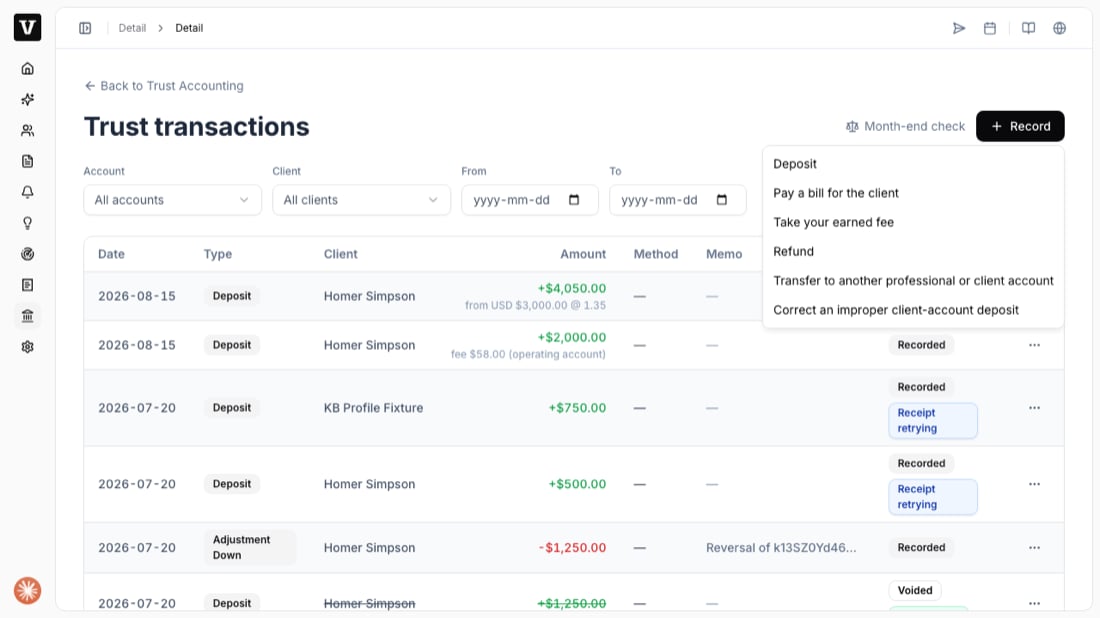
- Open Trust Accounting and go to Transactions (or press Record transaction on the home screen).
- Press Record, then choose Deposit.
Fill in the deposit
Select the trust account and the client, then enter the amount and date. For a CICC account, two extra fields appear: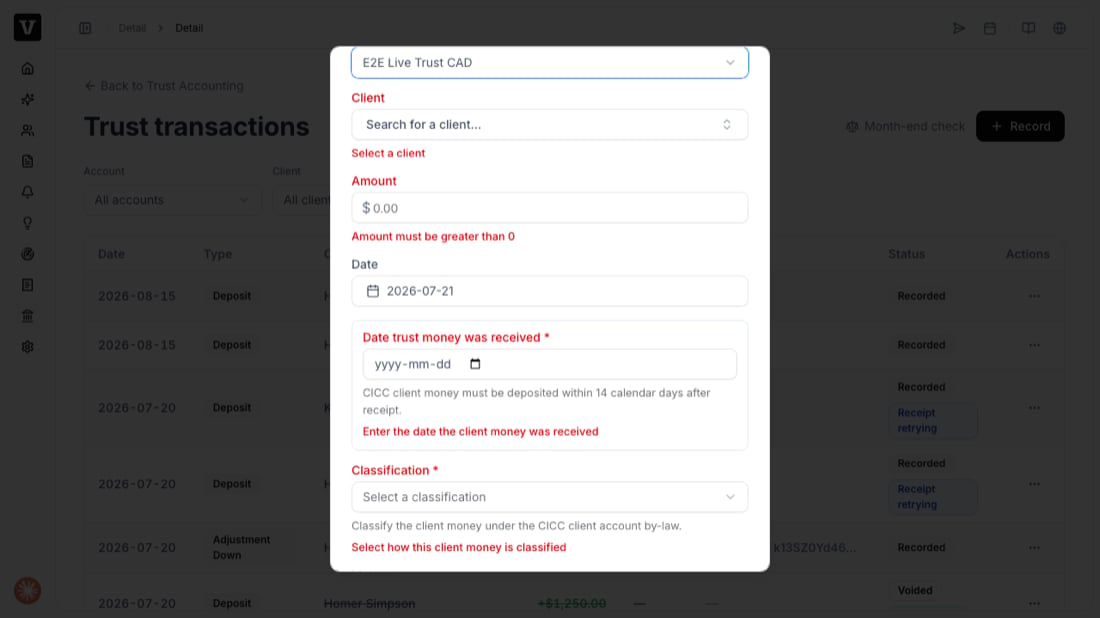
- Date trust money was received — the day the client’s money actually reached you. CICC requires the deposit to follow within 14 calendar days.
- Classification — which by-law category the money falls under.
Choose a classification
Open the Classification dropdown and pick the category that matches the money you received.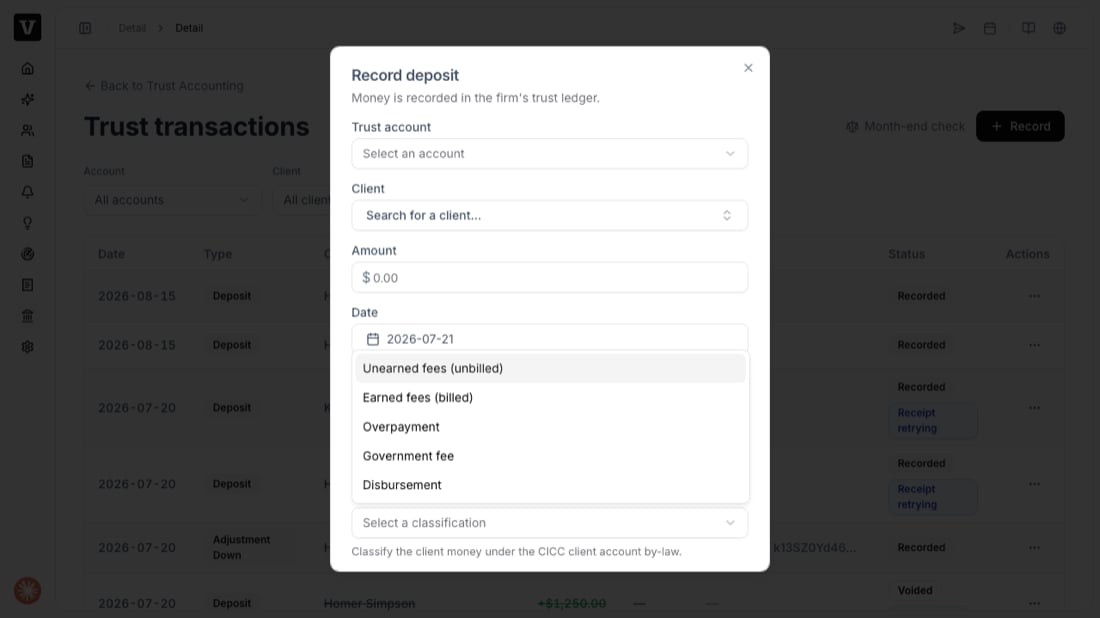
Press Record. The deposit appears in the transactions list and the client’s trust balance goes up.
Troubleshooting
- “CICC deposits require classification” / “…require the date the client money was received” — one of the two required fields above is empty. Fill it in and record again.
- “…must be deposited within 14 calendar days after receipt” — the received date is more than 14 days before the deposit date. Confirm the real dates.
- The Classification field isn’t showing — you’re on a non-CICC account (LSO/LSBC use Purpose instead), or the account isn’t a CICC trust account.