
Open the client profile

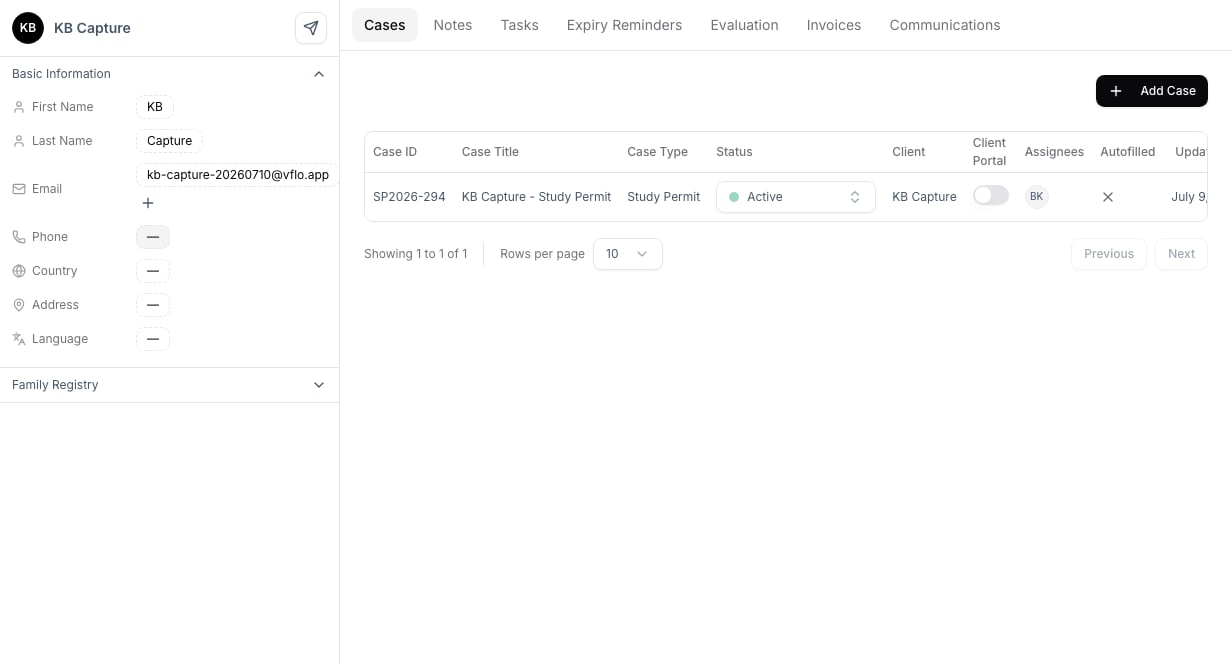
Search for the client from Clients, then open the profile before making changes. Review the linked cases first so you understand which application workflows may rely on the client record. Client profile with linked case
Update client information

Use the profile actions to update contact information, assigned staff, or related records. Keep the primary email accurate because it may be used for questionnaires, portal access, and communication workflows.

Track alternate email addresses

When a client uses more than one inbox, select the + beside the email field and add the alternate address. Messages sent to or received from that address appear in the client’s Communications history. Keep one primary email for client-facing flows such as questionnaires and portal access. Remove an alternate address if it no longer belongs to the client, and do not use this field for a spouse, representative, or staff email.

Before removing a client

Do not remove a record simply to correct a name or email. Search for duplicates first, update the existing record when appropriate, and review linked cases before using any destructive action. A client with active work should be resolved with the responsible staff member before deletion.

Troubleshooting

If a profile change is not reflected in a form, refresh the case and verify which person record the form uses. For unusual names or addresses, preserve the client-provided information and confirm the final format required by the application before generating forms.