

How it works
- Connect your IRCC account in Chrome. Use the Monitor tab in the VisaFlo Autofill Extension to set up your GCKey sign-in and passcode inbox.
- Let Monitor check for changes. Keep Chrome open. Monitor checks hourly while your IRCC session is active and runs a full check at your chosen daily time. Select Check now whenever you need a fresh read.
- Review the results in VisaFlo. Monitor matches applications to cases by their IRCC Application Number, saves available letter PDFs on linked cases, and adds case notes for changes.
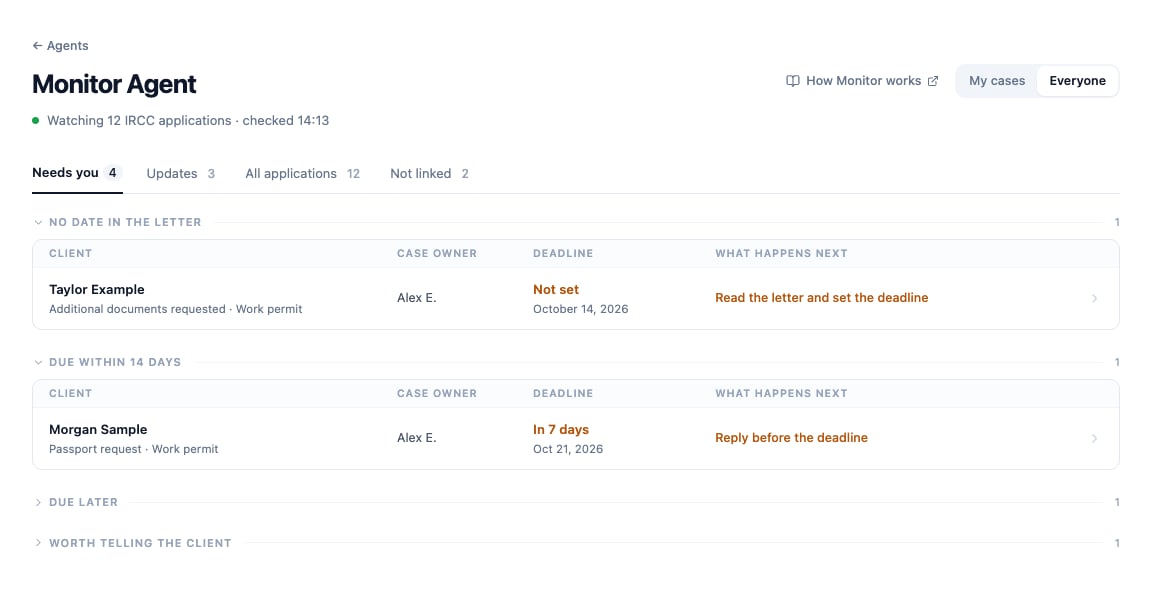
The Monitor Agent board groups work that needs your attention. Example data shown.
Find what you need
Use My cases to focus on cases assigned to you. If your role allows it, switch to Everyone for the wider list. The Monitor Agent card counts items on your own cases; the sidebar combines pending work from your agents.
Monitor normally follows open applications and those decided within the last 90 days. An older decision may therefore be absent from the board even though it remains in the IRCC account.
Link an application to a case
When a case already has the matching IRCC Application Number, Monitor links it automatically. Otherwise:- Open Not linked.
- Check the suggested case against the person’s name and application number.
- If the suggestion is missing or ambiguous, choose a case from the row’s picker. Search for the case you need.
- Select Link N selected.
Work through a new letter
- Open the letter in Needs you.
- Read the PDF. If it has not synced yet, open the extension and select Check now.
- Enter the deadline given in the letter and select Save. Until you enter a date, the item stays in No date in the letter.
- Complete the requested follow-up. Use IRCC for any reply the letter requires.
- Select Mark as handled to clear the item from your VisaFlo worklist.
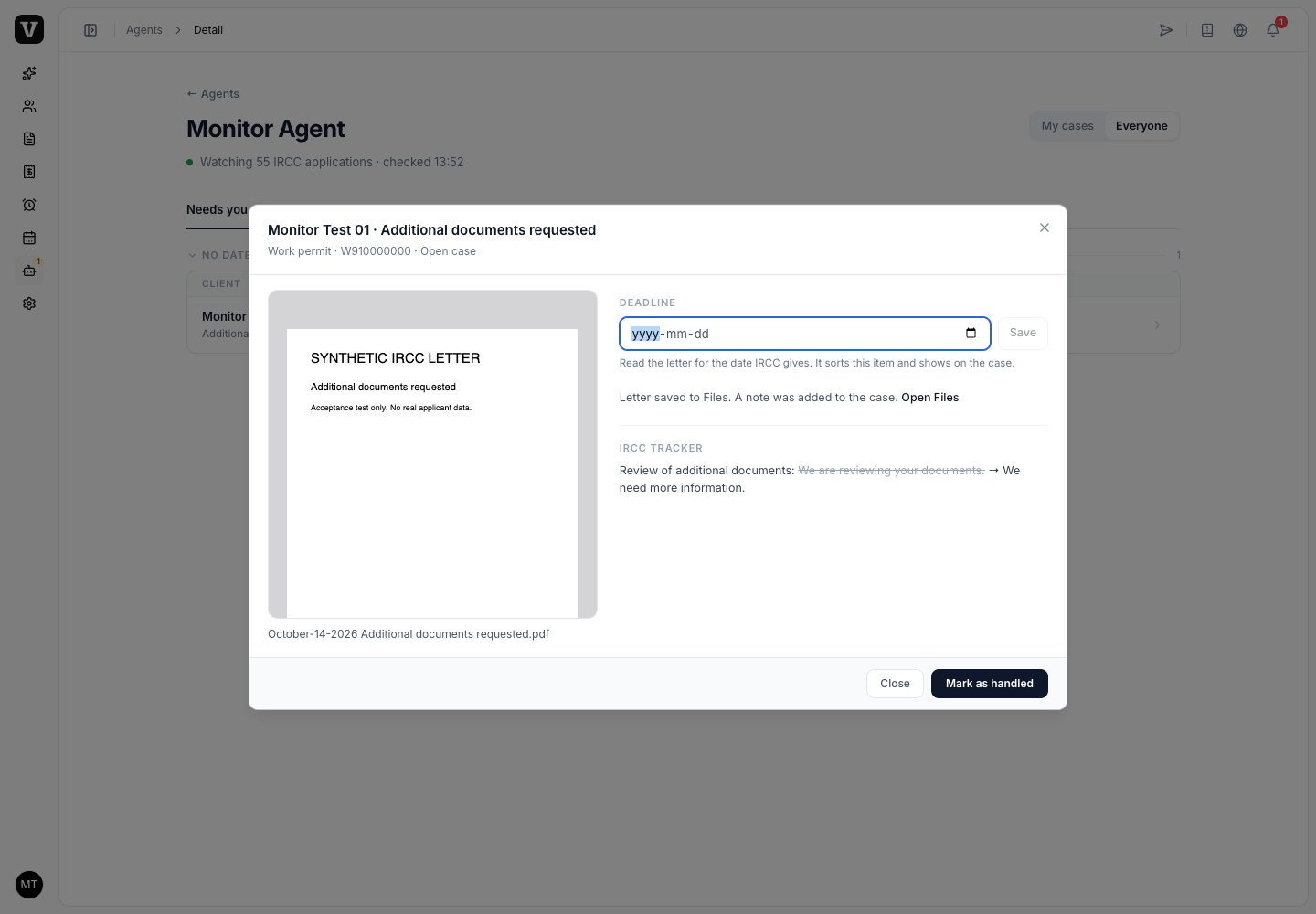
Read the letter, save its deadline, then mark it handled after the follow-up is complete.
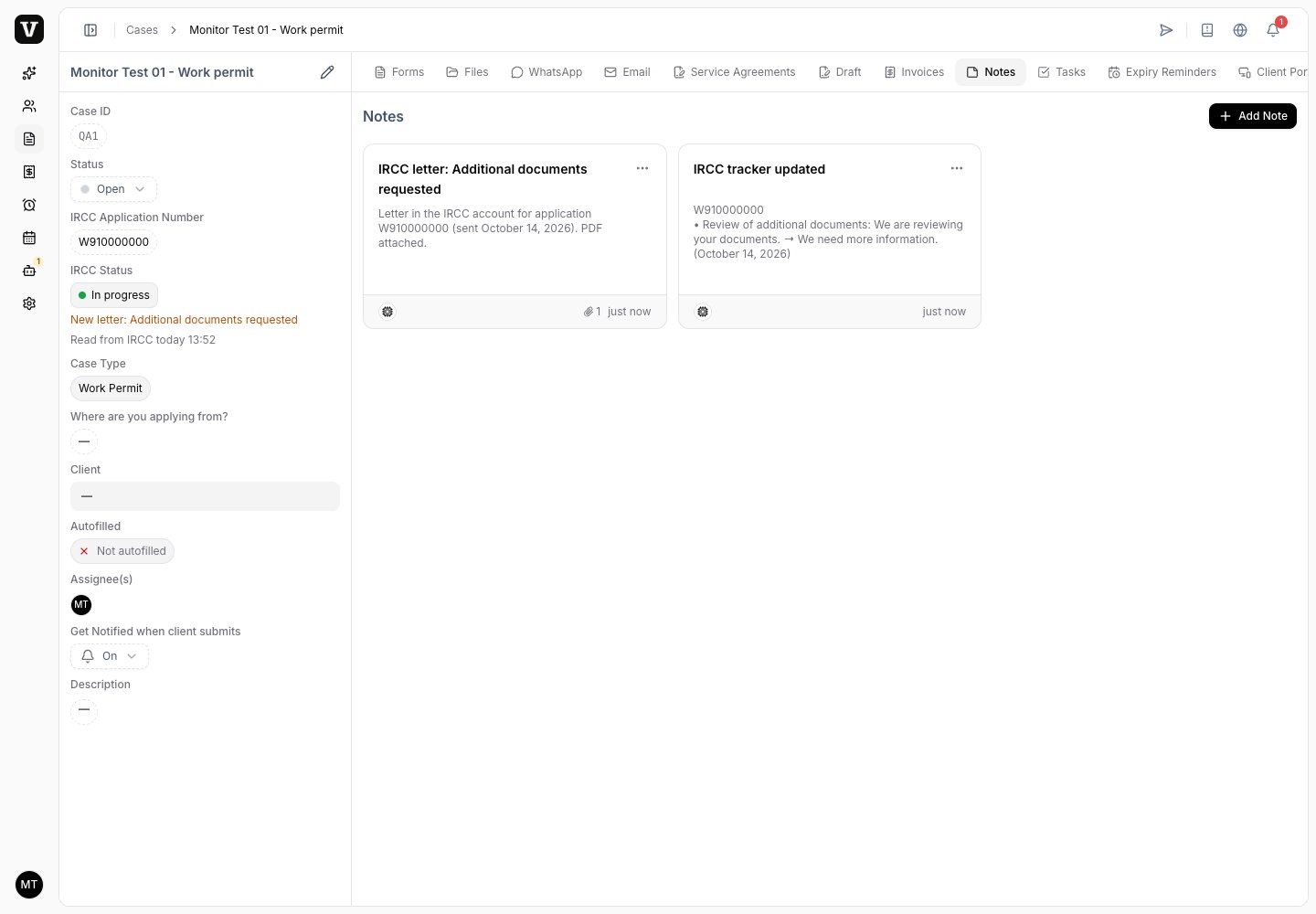
Monitor entries appear alongside your team's notes in the existing Notes tab.
Understand a possible ghost update
Changed with nothing visible (possible ghost update) means the page changed while the visible status, steps and letters stayed the same. It does not confirm a decision or a new letter. Open the IRCC account if you want to check it yourself.Keep checks running
- Keep Chrome open on the computer where you set up Monitor. Closing the extension popup is fine.
- Monitor keeps an active sign-in session available between checks. You may still be asked for a passcode or security answer when a new sign-in is needed.
- An open IRCC tab pauses automatic work while you use the portal. Close the tab when you are finished.
- Check the checked time at the top of the board. If it is old, open Chrome, open Monitor and select Check now.