

Install from the Chrome Web Store
Install the VisaFlo Autofill Extension from the Chrome Web Store. The Store is the only supported installation path. Do not download a ZIP file, enable Developer mode, or load an unpacked extension.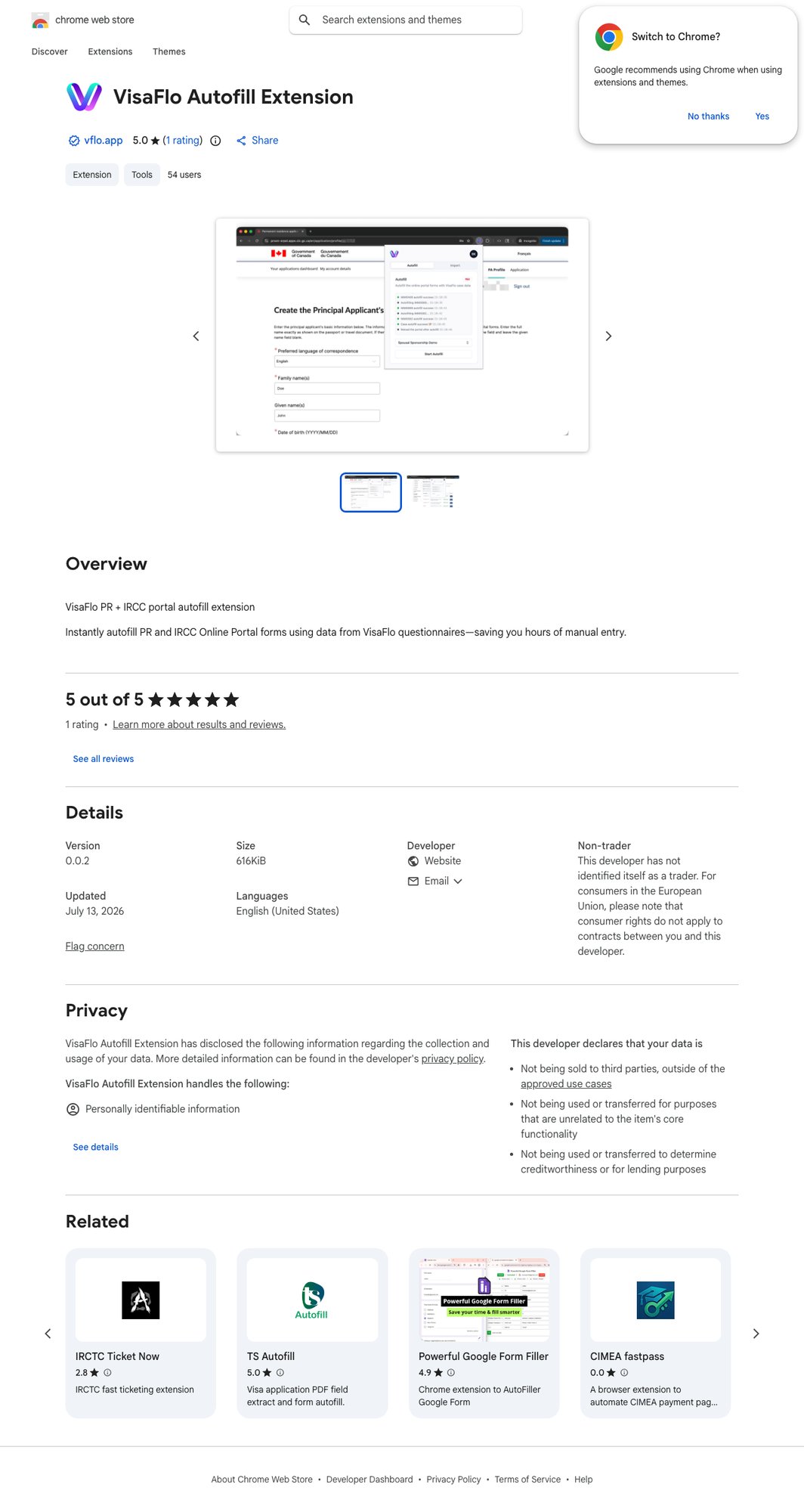
- Open the Store listing in Chrome.
- Select Add to Chrome and approve Chrome’s installation prompt.
- Open Chrome’s Extensions menu and pin VisaFlo Autofill Extension if your team needs quick access.
- Confirm the extension is enabled before opening a supported portal.
Verify before autofill
Open the intended portal and confirm that the case, questionnaire, and target application record all match. Do not run autofill against a client application until this review is complete.Troubleshooting
If Add to Chrome is unavailable, open the Store listing in Chrome rather than another browser or managed profile. If VisaFlo Autofill Extension is missing from the Extensions menu, confirm that it is enabled atchrome://extensions. If it is disabled by a managed-browser policy, ask your browser administrator to allow the Chrome Web Store listing; do not install a local copy as a workaround.