
Rename from the case file manager
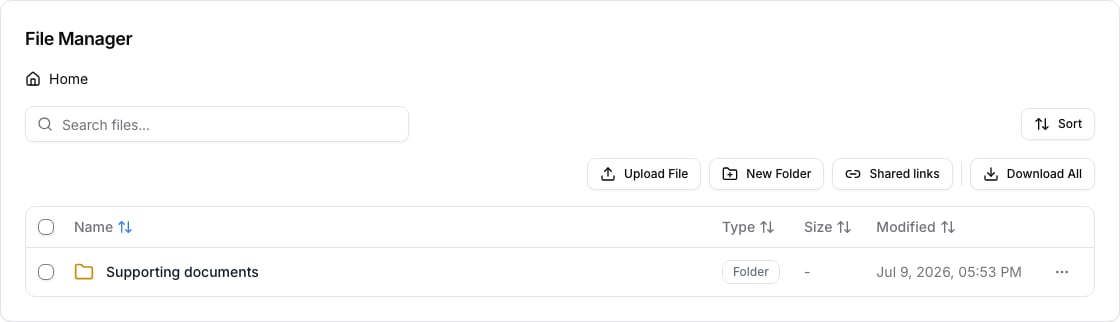
The case file manager, where staff open a file or folder action menu before renaming it. Open the case and select Files. Open the action menu for the file or folder you want to change, choose Rename, enter the new name, and save. Rename only after confirming that you selected the right version of the document.

Use names that explain the document

Use a convention your whole team can read without opening each file. A useful name usually includes the document purpose, the relevant person or period when needed, and a version or date for working copies. For example:
  • Passport - principal applicant - 2026-07
  • Employment letter - current employer - received
  • Service agreement - signed
  • Letter of explanation - draft 2
Avoid names such as scan, final, or new when there may be more than one version. A signed output should remain identifiable as signed even if a later draft is created.

Before sharing or submitting

Open the renamed file to confirm the name matches its content. Renaming helps staff find the right document, but it does not change the document itself or make a draft ready to share, sign, or submit. See Files & storage for folder and version practices.