
Open subscription settings

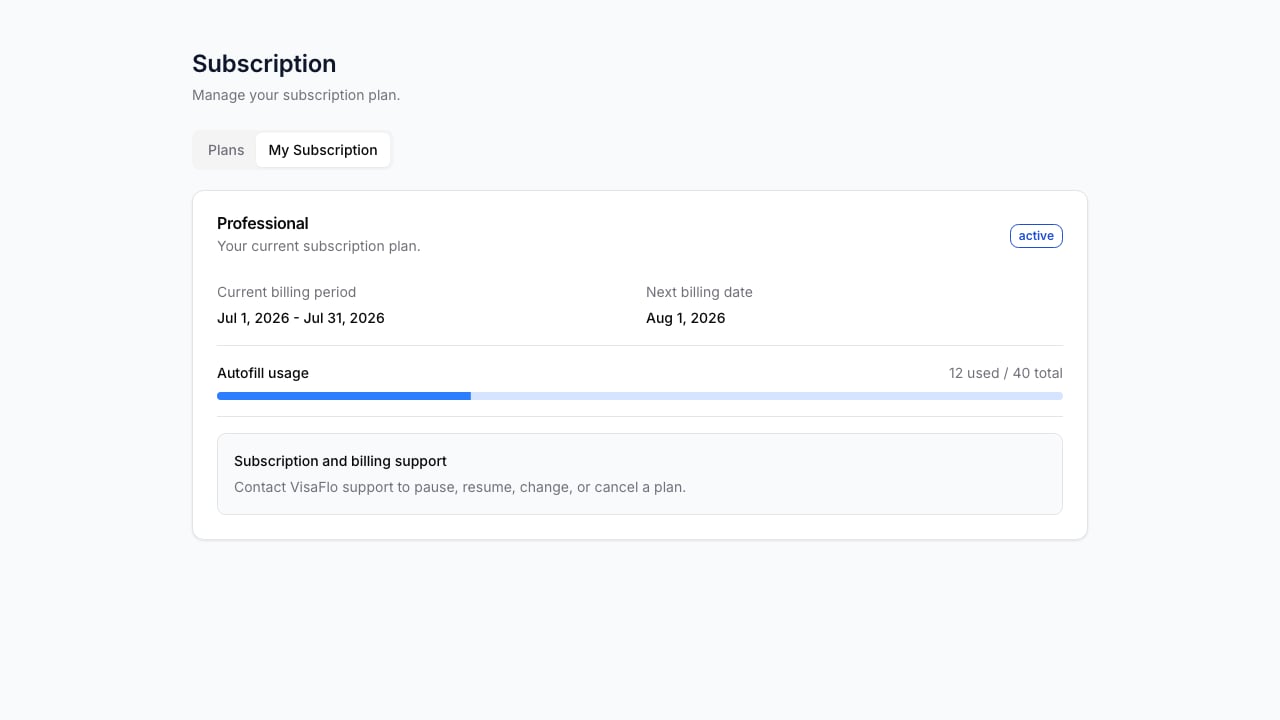
Open Settings and select Subscription. Review the active plan, subscription status, and renewal information before making a change. Only account owners or staff with billing access should manage subscription details. Subscription settings showing plan status, billing period, next billing date, and autofill usage.
Update payment or plan details

Subscription settings show the plan information currently attached to the workspace. For a pause, resume, upgrade, downgrade, cancellation, payment-method question, or billing issue, contact VisaFlo support from the support section in the dashboard. Keep the affected workspace name and any relevant invoice or subscription reference ready.

After a change

Return to Subscription settings and confirm that the new status or entitlement is reflected. Keep any support confirmation for your internal records. Changes to entitlements can take a short time to appear in the dashboard.

Troubleshooting

If the subscription view is unavailable, confirm that you are signed in with a billing-authorized account. For payment failures or an unexpected plan state, contact VisaFlo support with the company name and the affected invoice or subscription reference. Do not include full card information in a support request.