

Overview
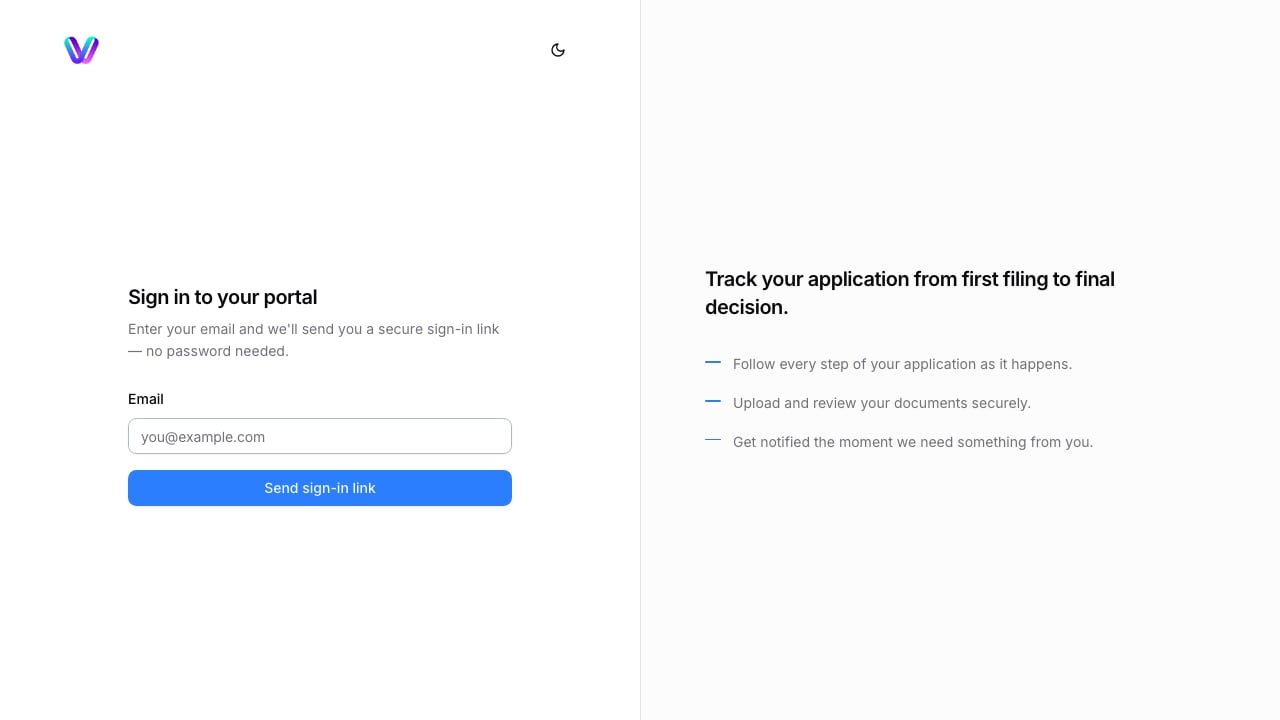
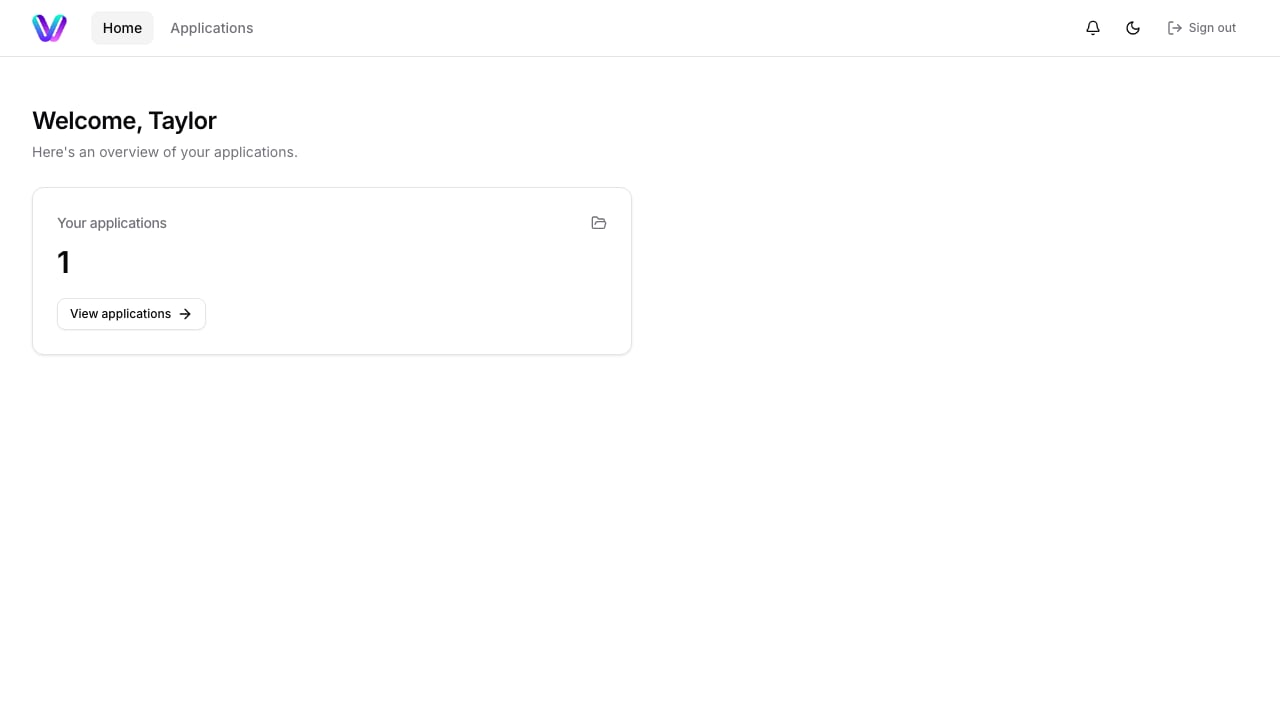
The Client Portal gives clients a separate, client-facing place to see the applications you choose to show them. Clients sign in with a secure email link, then view visible applications, client-facing statuses, questionnaires, signature requests, optional IRCC processing-time cards, and portal notifications. Use this guide when you want to prepare a case for the client portal and confirm what the client will see.Before you start
- The client must have an email address on their profile.
- The case must be linked to the correct client.
- Client portal access must be available for your workspace.
- If you use a white-label domain, confirm the domain is verified before sharing the portal link.
- If family members should only see their own forms, confirm family member records and form assignments before sharing access.
Share the portal sign-in page
- Open a case.
- Open the Client Portal tab.
- Expand the intro panel.
- Copy the portal sign-in URL.
- Send the link to the client.
/portal/signin on your VisaFlo or white-label domain. They enter their email, then VisaFlo sends a secure sign-in link if the email has portal access.
Show or hide a case
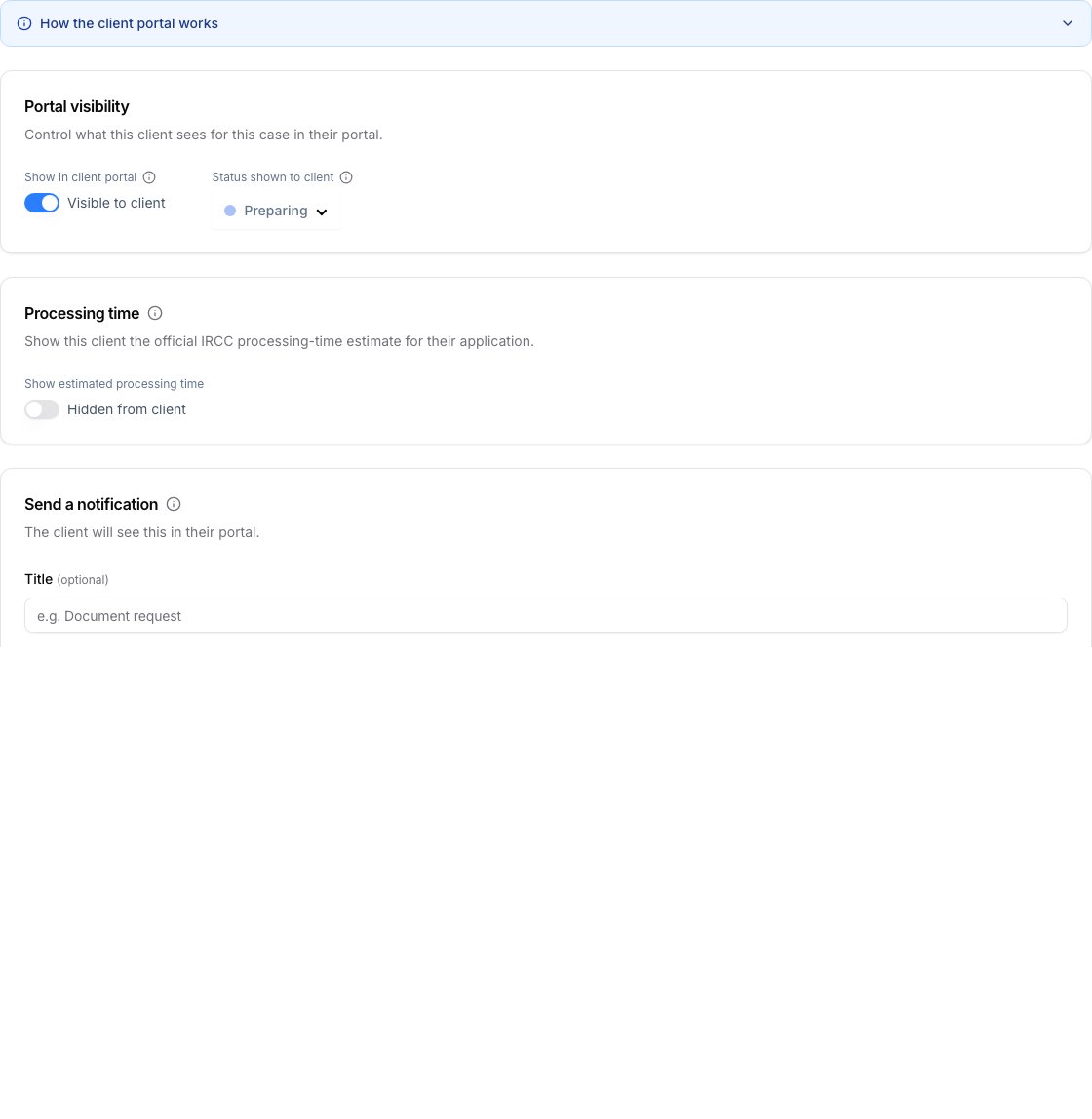
Cases are hidden from the client portal until you turn on visibility.- Open the case.
- Open the Client Portal tab.
- Turn on Show in client portal.
- Choose the Status shown to client.
- Save or wait for the case update to complete.
Configure the processing-time card
The portal can show a client-facing IRCC processing-time estimate when staff enable it for the case.- Open the case’s Client Portal tab.
- Find Processing time.
- Enable the card.
- Choose the relevant processing-time category and options.
- Review the staff-side preview before relying on it with the client.
Send portal notifications
Use portal notifications for updates you want the client to see inside the portal.- Open the case or client profile.
- Open the Client Portal notification area.
- Add an optional title.
- Write the message.
- Link the notification to a case when relevant.
- Send the notification.
What clients can do
An application detail page keeps the questionnaire, signature requests, and case-specific updates together.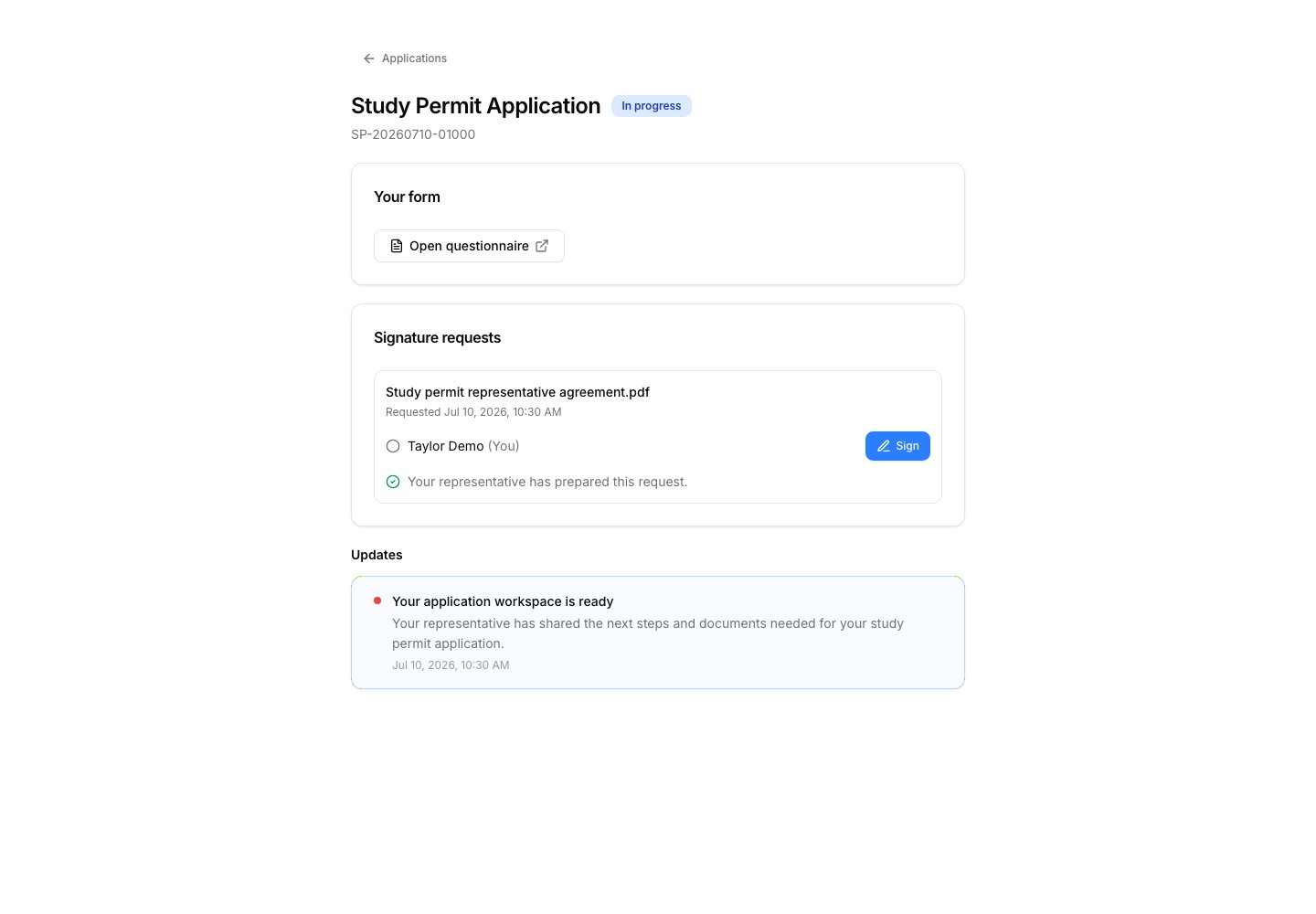
- See a home summary of their visible applications and unread updates.
- Open Applications to view cases shown in the portal.
- Filter applications by client-facing status.
- Open an application detail page.
- Open questionnaires assigned to them.
- Open signature requests and sign documents.
- View case-specific portal notifications.
- View processing-time estimates when staff enabled them.