

Before you start
- Install the VisaFlo Autofill Extension and pin it to Chrome’s toolbar.
- Have your GCKey username and password ready. Monitor currently supports the IRCC account you access through GCKey.
- Have access to the email inbox that receives your GCKey passcodes. You can use a mailbox connected to VisaFlo or enter codes yourself.
- Close other IRCC and GCKey tabs in this Chrome profile before starting the first check.
1. Open Monitor
Select the VisaFlo icon in Chrome’s toolbar and sign in to the VisaFlo account you use for your cases. Open the Monitor tab, then select Next: GCKey sign-in. If you cannot see Monitor, check that Chrome has updated the extension, then close and reopen its popup.2. Enter your GCKey sign-in
Enter the username and password you normally use for this IRCC account. Select Next: passcodes.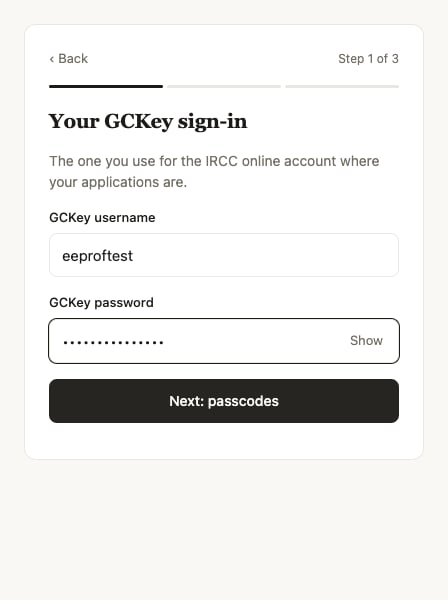
Use your GCKey sign-in for the IRCC account you want Monitor to check.
3. Choose where passcodes arrive
Select the connected VisaFlo mailbox that receives your GCKey codes. Monitor can retrieve the code from that inbox when IRCC asks for it. Prefer to enter it yourself? Choose I’ll type them myself. If the right mailbox is missing, connect it in VisaFlo → Settings → Email or use manual entry. If the list could not load, select Retry. Select Next: check time when you are ready.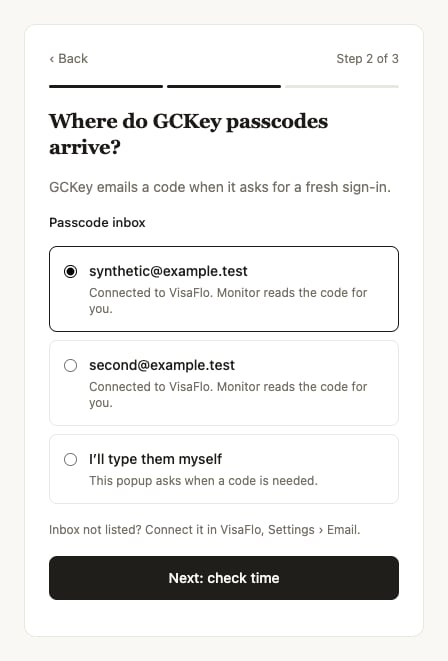
Choose the inbox that receives GCKey codes, or use manual entry.
4. Set a daily time and start
Choose a daily check time when this computer and Chrome are usually running. The time uses this computer’s local time zone. Select Save and run the first check. Monitor opens the IRCC sign-in flow and shows its progress. You can close the popup; reopen Monitor if it needs an answer from you.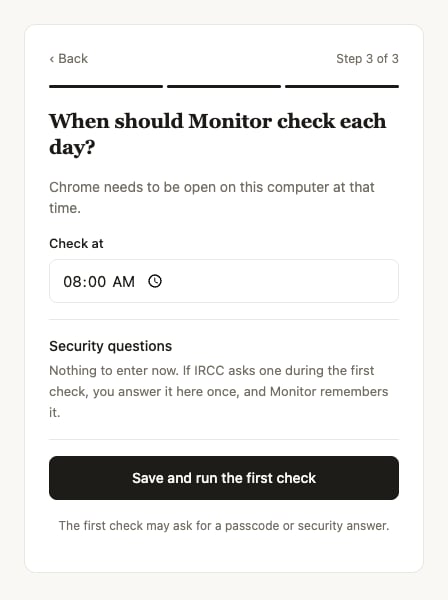
Choose the daily time, then start the first check immediately.
5. Answer any sign-in questions
IRCC may ask for a passcode or a security answer during the check:- Passcode: Monitor uses your selected inbox, or asks you to enter the code. Type the full code exactly as it appears, including letters.
- Security question: Read the question shown in Monitor, enter your answer and select Send answer. You do not need to enter every question during setup. Monitor remembers answers that IRCC accepts.
- A step in the IRCC window: Follow Monitor’s on-screen instruction and complete that step in the window it opened.
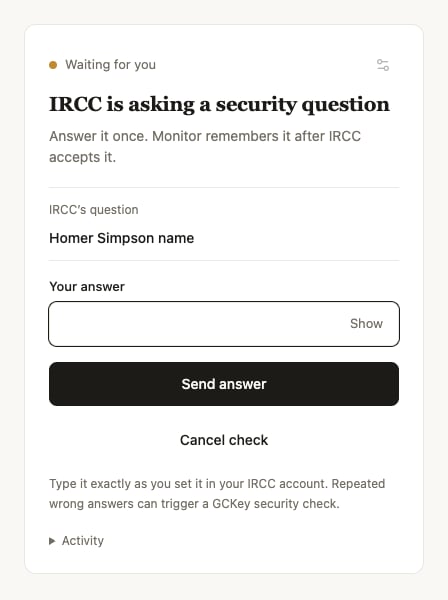
Answer the question IRCC is asking now. Accepted answers are remembered for later checks.
6. Review your first result
The first result shows how many applications Monitor is following and how many matched a VisaFlo case. Select the VisaFlo link to review the full list or link applications that need a case.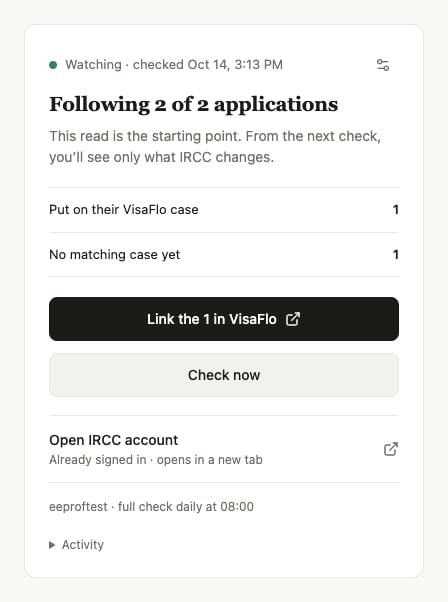
The first check establishes a starting point. Future checks highlight changes.
Everyday use
Chrome must stay open for scheduled checks. Monitor checks hourly while your IRCC session is active and runs a full check at your saved daily time. Another computer or Chrome profile needs its own setup.
When Monitor needs your help
If you still cannot complete a check, contact support with the message shown and the time of the check.