

Before you run autofill
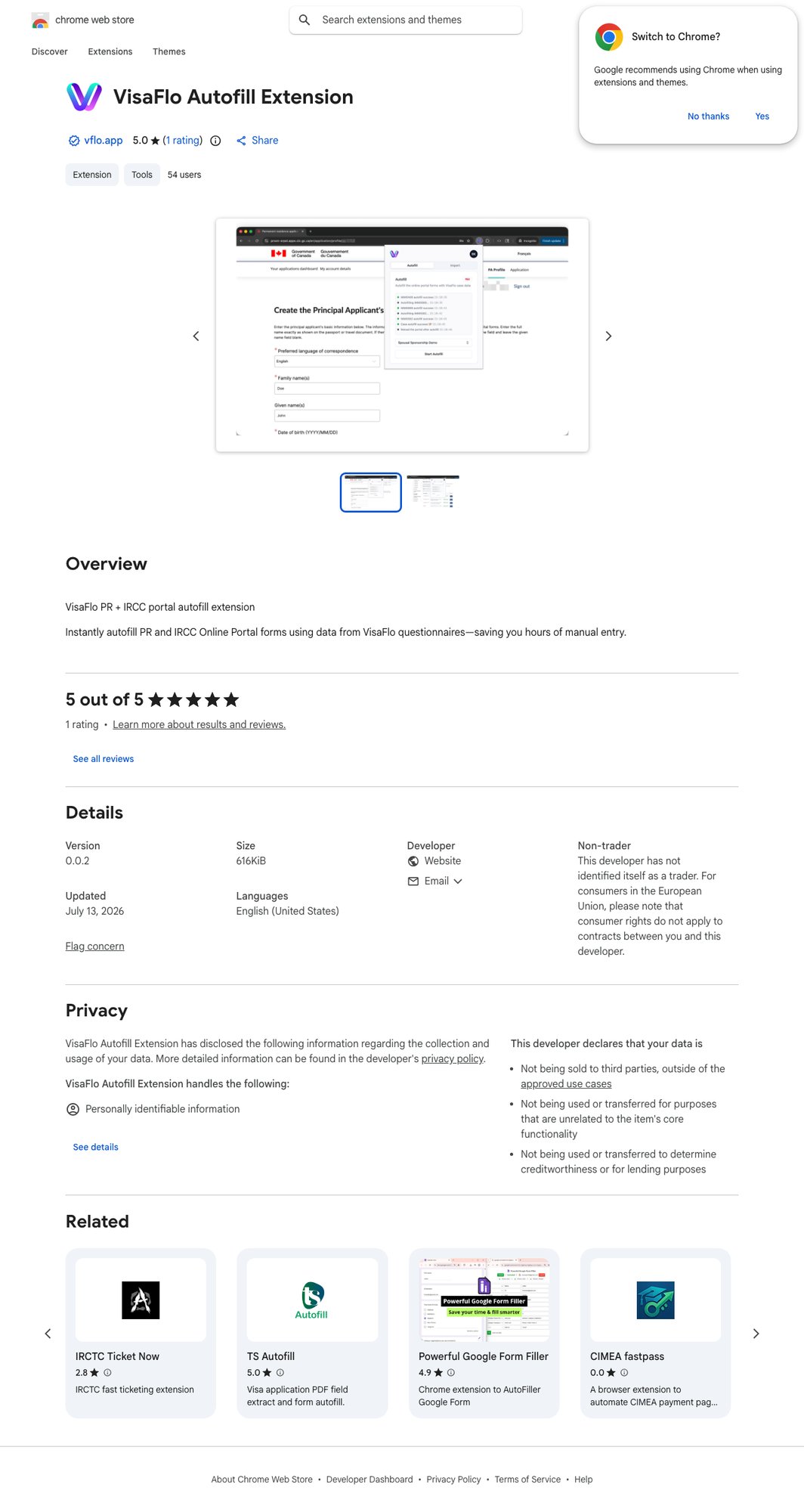
- VisaFlo Autofill Extension is installed from the Chrome Web Store and enabled in Chrome.
- The VisaFlo case is the correct client and immigration matter.
- Required questionnaire sections are complete and validation issues are resolved.
- The target portal is open to the correct application record and you are signed in with the authorized account.
- You understand which fields will still require manual input or professional judgment.
Run the workflow
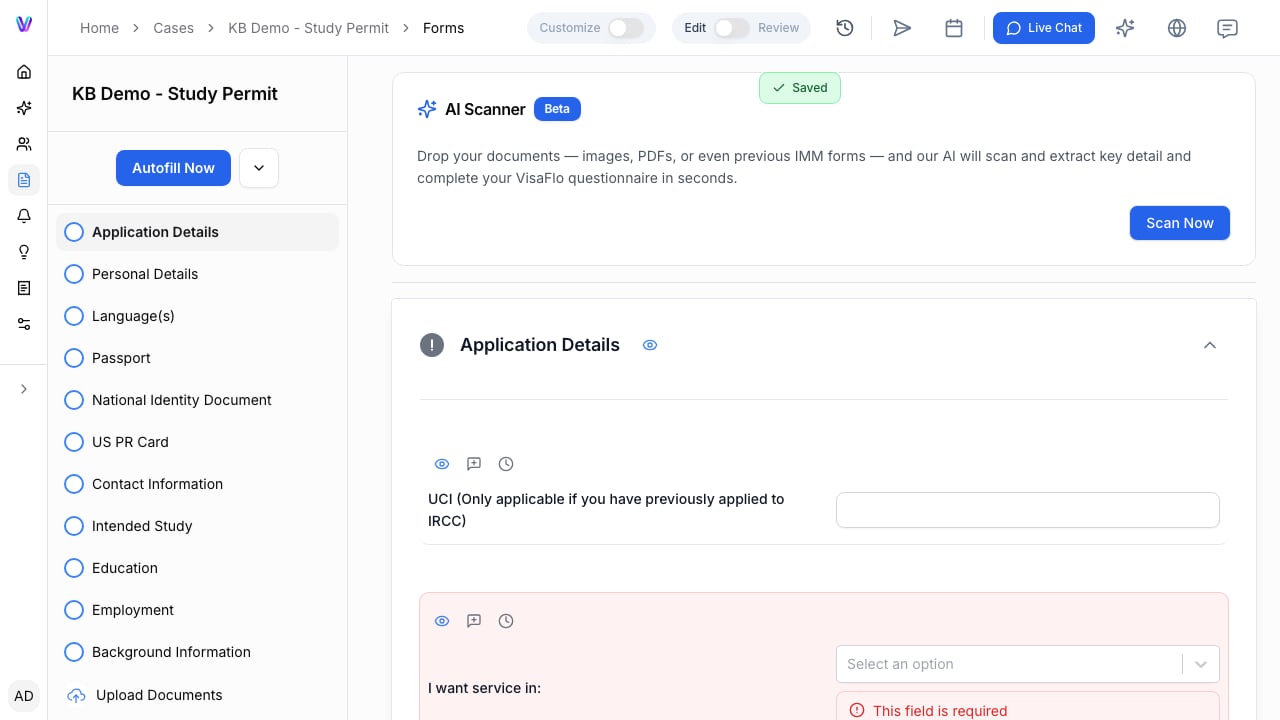
- Open the case forms workflow in VisaFlo.
- Choose the supported autofill action for the target portal.
- Keep the target portal record visible and verify that it belongs to the same client and matter.
- Start autofill and wait for the extension to finish its current action.
- Review the portal fields against the VisaFlo questionnaire and source documents.
Verify the destination system
Never treat a completed autofill action as a completed application. Check the destination portal for missing fields, date formats, selections, family members, declarations, attachments, and any sections the extension could not populate. Save or submit only after an authorized reviewer has confirmed the portal record.When autofill is blocked or fails
Stop and diagnose the source before retrying:
Capture the case type, target portal step, and the specific field or error when you contact support. Do not include passwords, full client documents, or portal credentials in a support message.