
Add a lead manually

  1. Open Leads and choose the action to add a lead.
  2. Enter the prospect’s available contact information.
  3. Select the starting stage and the staff member responsible for follow-up.
  4. Save the lead, then record the next action in the activity timeline.

Verify the new record

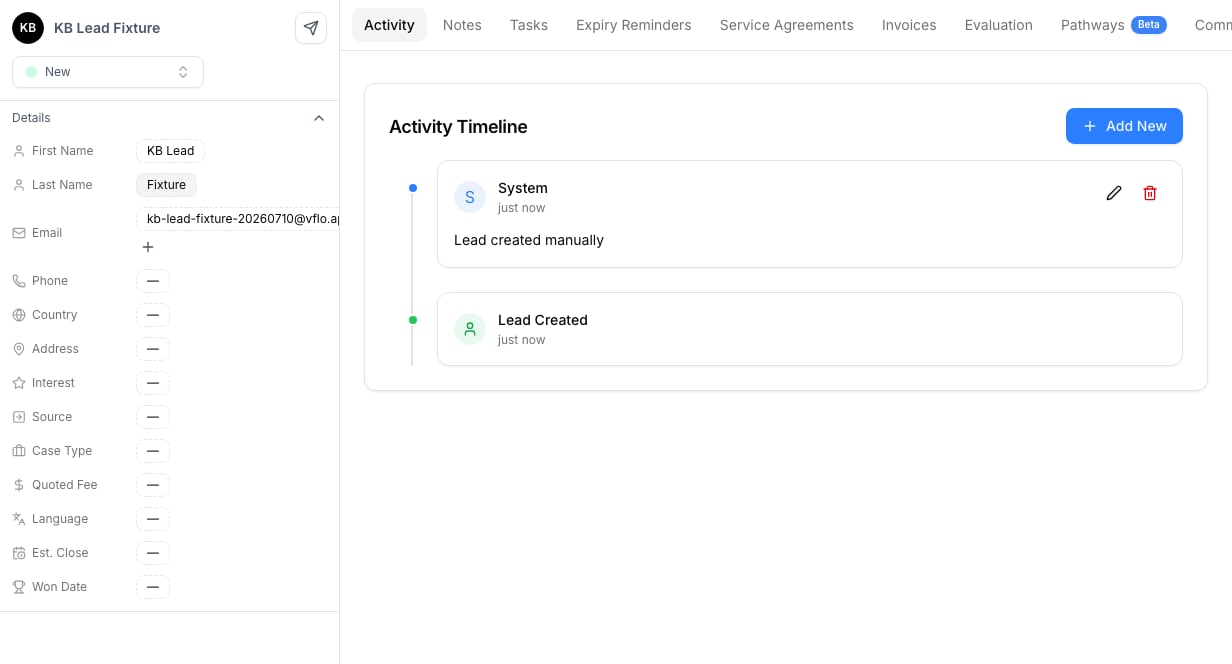
Open the lead after saving to confirm the contact information, current stage, and activity timeline. New lead profile with activity timeline
Add another email address

Keep the main email as the address used for the lead’s primary identity and add alternate addresses from the lead profile when the same person uses more than one inbox. Select the + next to the email field, enter the alternate address, and save it. VisaFlo includes messages sent to or received from an added address in the lead’s Communications history. Do not add a colleague’s or family member’s address unless it genuinely belongs to the same lead; create or link the appropriate record instead.

Avoid duplicates

Search by full name, email, and phone before adding a new lead. If the prospect already exists, update the existing lead and add a new timeline entry instead of creating a second record.

Importing leads

For a large import, use the supported import workflow and validate a small sample before importing the complete list. Keep the source column names and contact fields consistent so leads can be routed correctly.