

Overview
Document Shares let your firm send selected case files or folders to an external recipient without giving them dashboard access. Recipients open a secure share link, verify the email address the share was sent to, preview or download files, and optionally leave file-specific comments. Use this when you need a client, reviewer, co-counsel, or partner to review case documents.Before you start
- Upload the files to the case file manager.
- Confirm the recipient email addresses.
- Decide whether each recipient should be a Viewer or Reviewer.
- Decide when the link should expire.
Create a share
- Open the case file manager.
- Select the files or folders you want to share.
- Click Share files.
- Add one or more recipient emails.
- Choose a role for each recipient:
- Viewer can access shared files.
- Reviewer can access shared files and leave comments.
- Choose an expiry: 7 days, 30 days, 90 days, or no expiry.
- Optionally add a message for the recipients.
- Create the share.
Recipient experience
The recipient opens the share link and enters the email address the share was sent to. This prevents another person from opening the link with a different email address.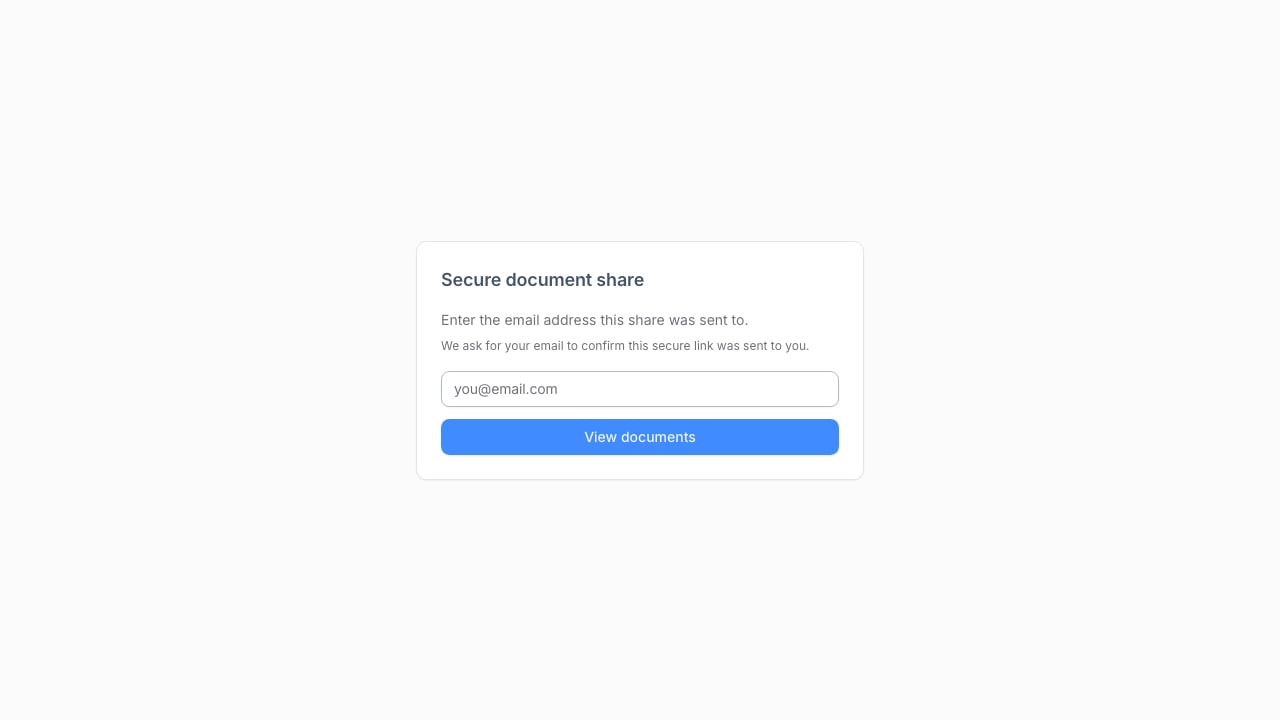
- Select files from the file list.
- Preview supported files inline.
- Download shared files.
- Read comments on each file.
- Add comments if their role is Reviewer.
Manage existing shares
From the case, use the shared links panel to review active shares and recipient activity. Depending on the share state, you can:- Revoke a full share.
- Revoke a specific recipient.
- Add a new recipient.
- Resend invite emails.
- Extend an expiry date.
- Re-share an expired or revoked share.
- Mark comments as read after reviewing them.