

Separate contact import from case migration
Clients and leads are usually the simplest records to import because they have a clear relationship and contact structure. A full case migration is different: it can include case types, questionnaire answers, documents, tasks, reminders, notes, and history that may not map one-to-one from another platform. Start with the records your team needs to operate immediately, then plan the case migration separately rather than assuming a spreadsheet can recreate every prior workflow.Prepare a clean source file
Before importing clients or leads:- Use one row per person or organization.
- Keep the source system’s unique ID in a separate reference column when available.
- Normalize contact fields, especially email addresses and phone numbers.
- Remove duplicate rows and obsolete test records.
- Keep first name, last name, email, and ownership fields in consistent columns.
- Save the original export separately so you can trace or correct an import later.
Import a sample first
Import a small representative sample before the full file. Check that names, emails, assignees, stages, and source information appear where the team expects. Search for duplicates after the test import, then correct the mapping before importing more records.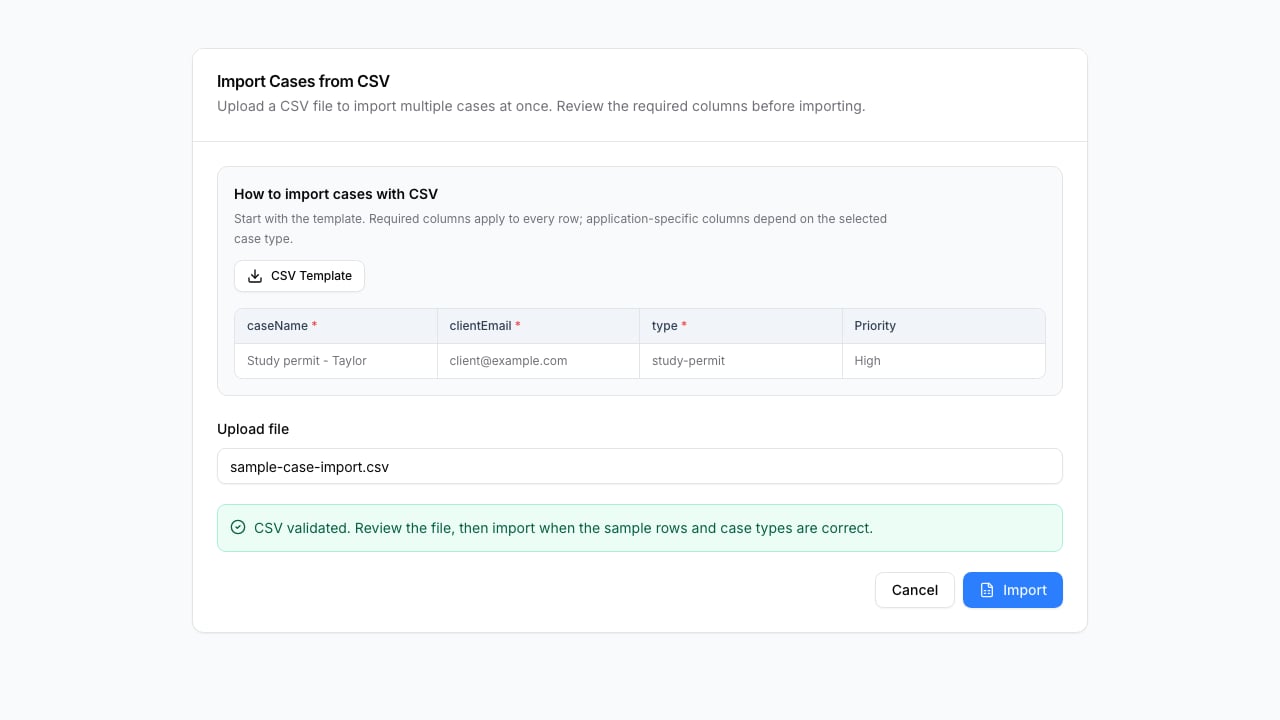
Plan a case migration deliberately
For active matters, decide what must move on day one:- Client relationship and contact information.
- Case type, current status, owner, and next action.
- Essential documents and signed outputs.
- Upcoming deadlines and reminders.
- The client request that is currently outstanding.