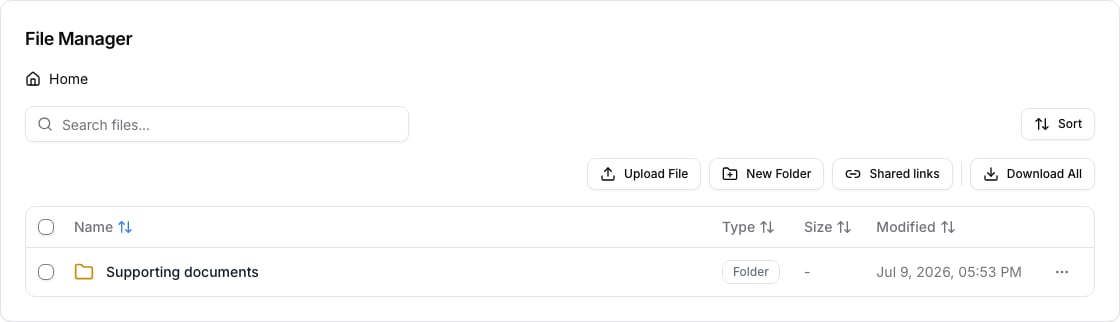
Choose the file

Open the case, select Files, and locate the image or PDF that needs to be smaller. Confirm that you have selected the correct version before starting; compression creates a new result and does not replace a file silently. Case file manager

Compress it

Open the file actions and choose Compress. Select the target size or quality offered by the dialog, then start compression. Keep the original when you may need the highest-quality version later; use the compressed result when a portal or email attachment has a smaller file-size limit.

Check the result

Open the compressed file before you use it. Confirm that every page is present and text, stamps, and signatures are still readable. If it remains too large, use a lower target only after checking whether the receiving system has a documented size limit.

Troubleshooting

Compression is intended for supported image and PDF files. If the action is unavailable, check the file type and wait for any in-progress upload or conversion to finish. Do not delete the original until the compressed output has been reviewed.