

Overview
The Lead Chatbot is an embeddable AI assistant for your firm’s website. It can answer common visitor questions from your configured firm profile, FAQs, and uploaded knowledge sources, then capture lead details and notify selected team members. Use this guide when you want to configure the chatbot, test the visitor experience, and install it on your website.Before you start
- You need access to Settings.
- Prepare your firm’s website URL, public contact details, booking link, service areas, hours, fees, and common visitor FAQs.
- Decide which team members should receive new lead notifications.
- If you plan to install the widget yourself, make sure you can edit your website’s HTML or tag manager.
Configure the chatbot
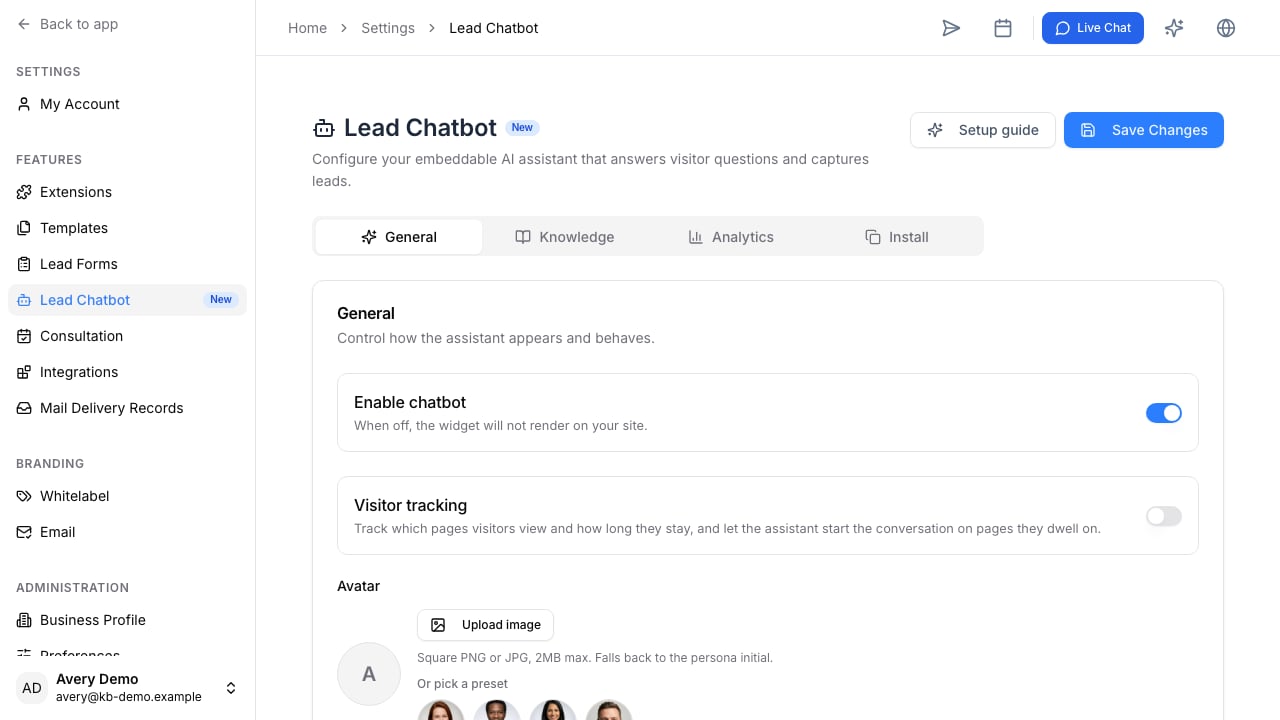
- Go to Settings > Lead Chatbot.
- Open the General tab.
- Set the persona name visitors will see.
- Upload an avatar if you want the widget to use a branded assistant image.
- Choose the theme color.
- Write the welcome message and suggested prompts.
- Add your booking link, contact email, contact phone, and practice areas.
- Select the team members who should be notified when the chatbot captures a lead.
- Save the configuration.
Add firm knowledge
Open the Knowledge tab and fill the structured profile:- Services: the immigration services your firm offers.
- Hours: normal availability or response expectations.
- Fees: consultation or pricing guidance that can be shared publicly.
- About: a short description of the firm and who you help.
- Add a website URL to ingest public website content.
- Upload a document if your firm has an onboarding sheet, service guide, or FAQ document.
- Wait for the source to finish processing.
- Disable, delete, or re-scrape sources when the information changes.
Preview and test
Use the live preview in the settings page to check the welcome message, suggested prompts, colors, and avatar. Then open Chatbot Preview to test the full widget experience before installing it on your website.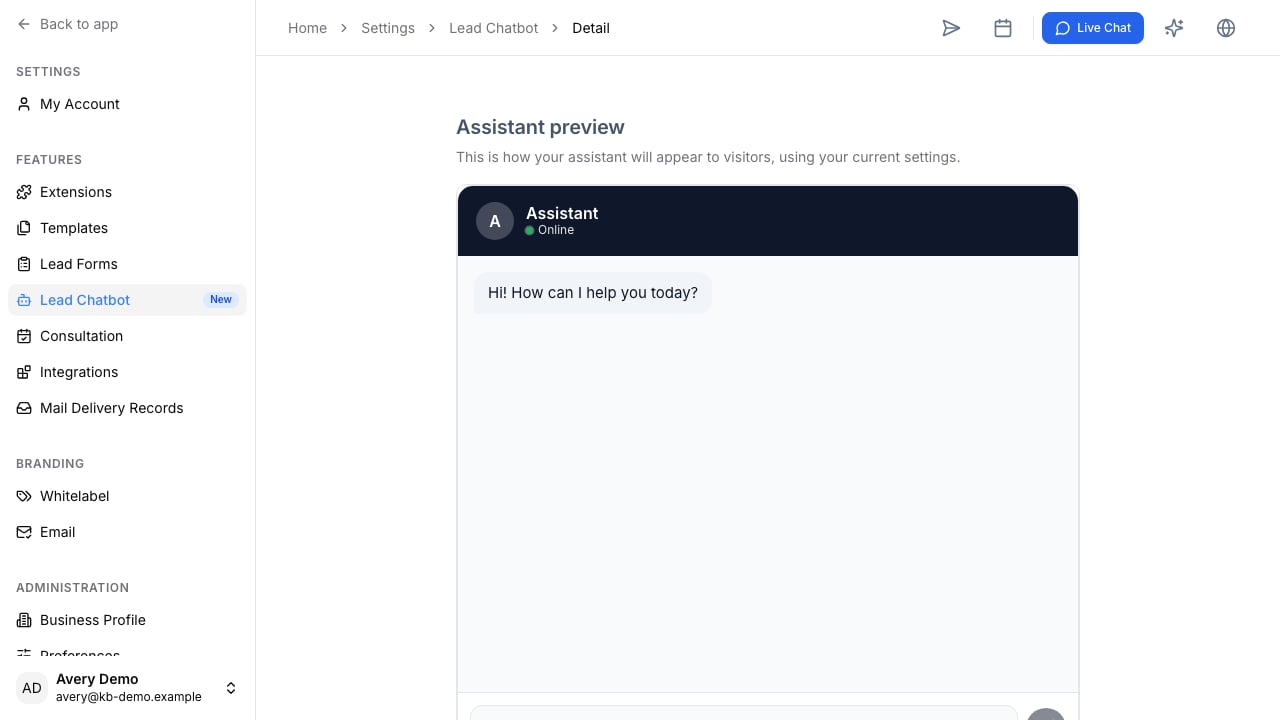
- Ask about services your firm offers.
- Ask a question that should be answered from an FAQ.
- Ask about pricing or fees.
- Submit lead contact information.
- Confirm the right team members receive the notification.
Install on your website
Open the Install tab and copy the embed snippet. Add it to your website where global scripts are loaded, such as the main layout, theme settings, or tag manager. After installing:- Visit the public website in an incognito window.
- Confirm the widget appears.
- Send a test conversation.
- Check that the conversation appears in VisaFlo analytics.
- Check that lead notification emails are sent to the selected recipients.