

Use the official Chrome Web Store listing
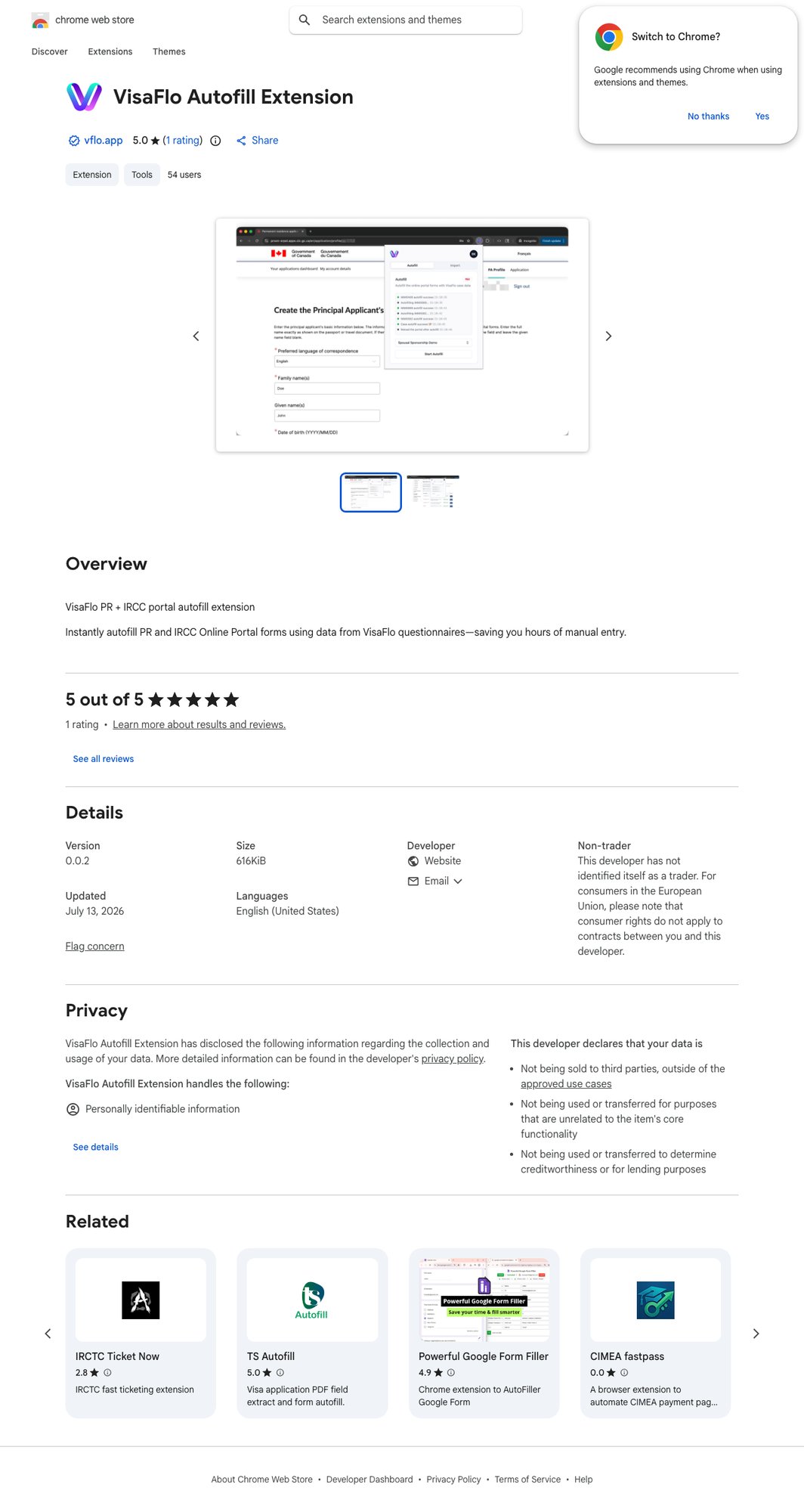
Install in Chrome
- Open the listing in Chrome.
- Select Add to Chrome and approve the Chrome prompt.
- Open Chrome’s Extensions menu to confirm VisaFlo Autofill Extension is enabled.
- Pin it if quick access is useful for your team.
- Let Chrome update the extension normally; do not manually replace its files.
Verify before a live filing
Open a reviewed non-urgent case and the matching portal workflow. Confirm the extension can identify the expected case context before using it for time-sensitive work. Keep the portal tab on the correct application and do not run another autofill extension at the same time.Common installation problems
If Add to Chrome is unavailable, use Chrome and check whether your organization manages browser extensions. If the extension disappears, verify that it is enabled atchrome://extensions, then reinstall it from the Store listing if needed. If it cannot find the expected workflow, recheck the case type and portal support before retrying.
See Extension Overview for the operating sequence.