
When a case is ready
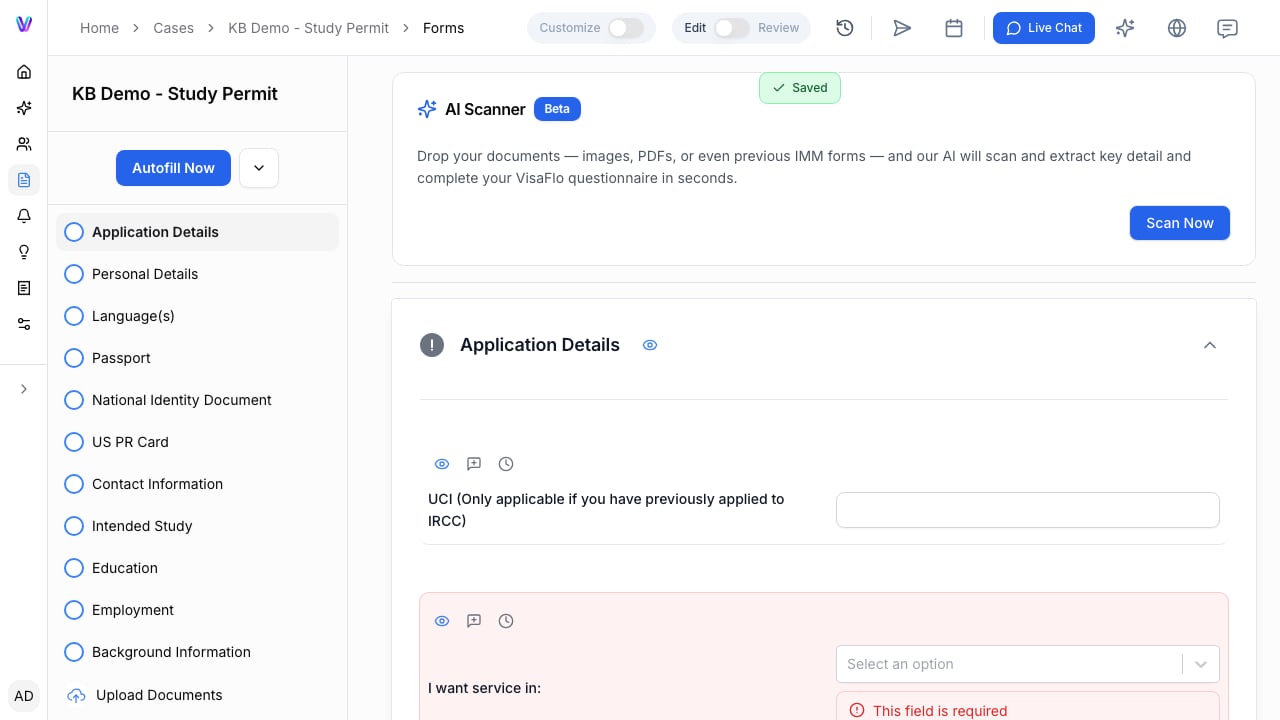
The case Forms workspace, where reviewed questionnaire data becomes available for autofill. Start portal autofill only after the case, questionnaire, family information, and target portal application have all been reviewed. The needed readiness is not simply a 100% completion percentage. The staff member should be able to explain where each important destination value comes from and resolve any conflicting source data first.

Prepare the workflow

  1. Confirm the case type supports the intended portal workflow.
  2. Review the principal applicant and every required family-member section.
  3. Resolve required-field and validation issues.
  4. Install the matching extension from Settings > Extensions.
  5. Sign in to the destination portal yourself and open the correct application.
  6. Run autofill, then review every populated portal field before saving or submitting.
VisaFlo does not need a government portal password. The extension works after the authorized user has signed in to the portal.

What counts as usage

Usage, limits, renewal periods, and overage treatment depend on the subscription attached to your workspace. Check Settings > Subscription or obtain written confirmation from support before relying on a particular interpretation for a high-volume workflow. Correcting source data and re-running a workflow may be operationally necessary; do not assume any billing outcome without checking the plan that applies to your company.

If the case is incomplete

Do not use autofill to discover which fields are missing. Return to the questionnaire, assign the correct follow-up, and review the source information. If the destination portal requires a value VisaFlo does not populate, complete it manually and retain the review responsibility in the case workflow. See Autofill with Extension and Pricing & limits.