

Check the subscription that applies to your workspace
Open Settings > Subscription to view the active plan and the billing actions available to your workspace. The dashboard is the source for the plan currently attached to your company; do not rely on a historic quote, another firm’s plan, or a screenshot from a different workspace.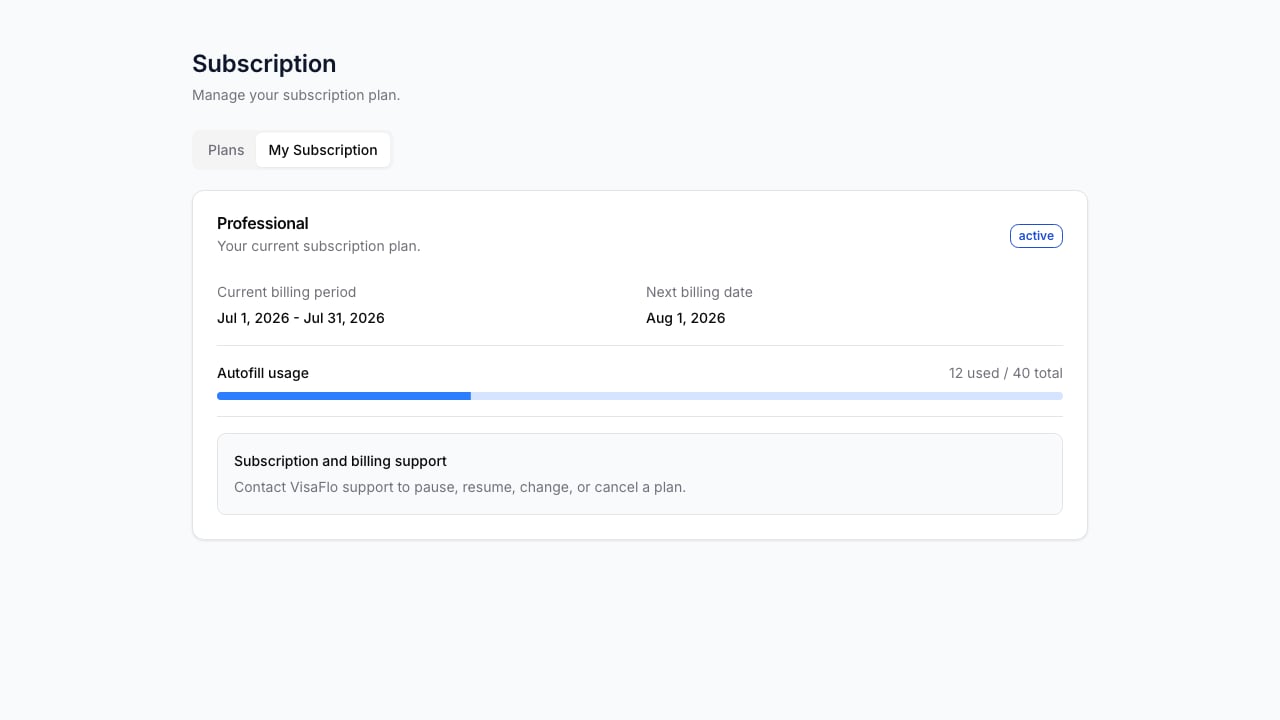
Understand a limit before you plan around it
Some features or usage types can be plan-dependent. Before committing to a high-volume workflow, confirm:- Which plan is active.
- Which feature or usage type is relevant to the workflow.
- Whether the limit applies by billing period, annual allocation, feature, or another contract term.
- What happens when the included amount is reached.
- Who in your firm is authorized to change the subscription.
Upgrade, downgrade, or update billing details
Use the Subscription support section to request a plan or payment-method change. Keep the confirmation from VisaFlo, then return to Subscription settings and confirm the displayed status before assuming that access or entitlements have changed.When a feature appears locked
- Confirm that you are in the correct workspace.
- Review the active subscription and any visible plan status.
- Refresh the dashboard after a recent billing change.
- Check whether the feature requires additional setup, such as an enabled extension or connected provider.
- Contact support with the workspace name, affected feature, and screenshot if access remains unexpected.