

This page covers changes up to November 4, 2026.
New
Answer Fix
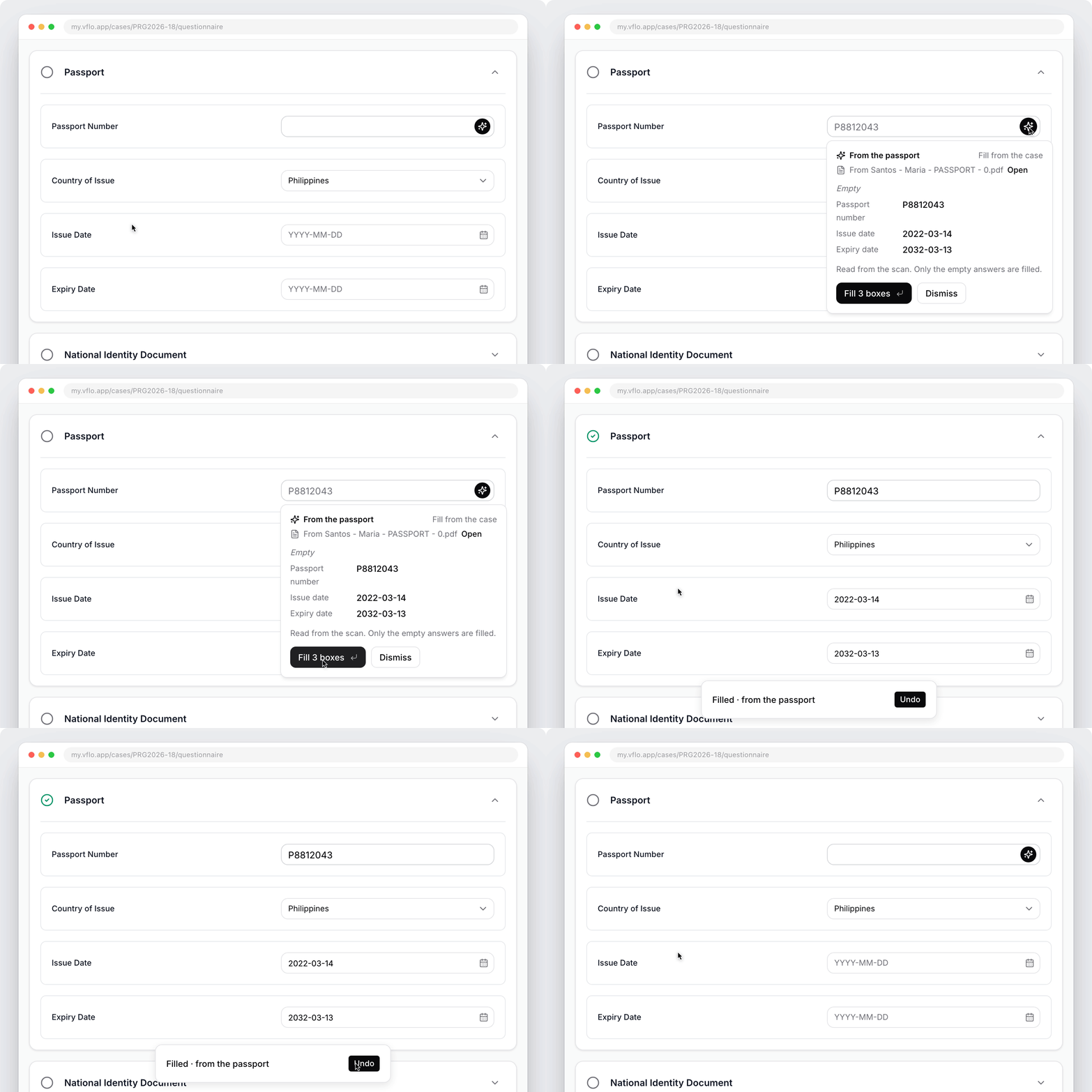
Answer Fix suggests fixes to the answers a client typed or left empty. Nothing changes until someone on your team accepts.- A sparkle on the answer. An answer with a suggestion has a dotted line under it and a sparkle at the right edge. Select it to see the answer as it is and as suggested.
- Fill from the case. Empty passport answers come from the client’s passport scan, an empty answer can come from what the rest of the household answered, and spouse and children rows come from their own questionnaires. Only empty answers are filled.
- Check against documents. If an answer doesn’t match the client’s uploaded documents (name, date of birth, passport number, dates), choose Use the passport’s or Keep answer.
- Check this. Answers in another language or script, email typos such as
gmial.com, a To date before the From date, or a phone number without a country code. - Shorten and tidy. Answers over a form’s length limit, and capitals or postal code formats your firm has fixed by hand before.
- Hover over Accept to preview the answers it will write. After you accept, a message says what changed, with Undo. The count at the bottom right lists every suggestion on the page, with Fill all and Tidy all.
Case Activity and audit log
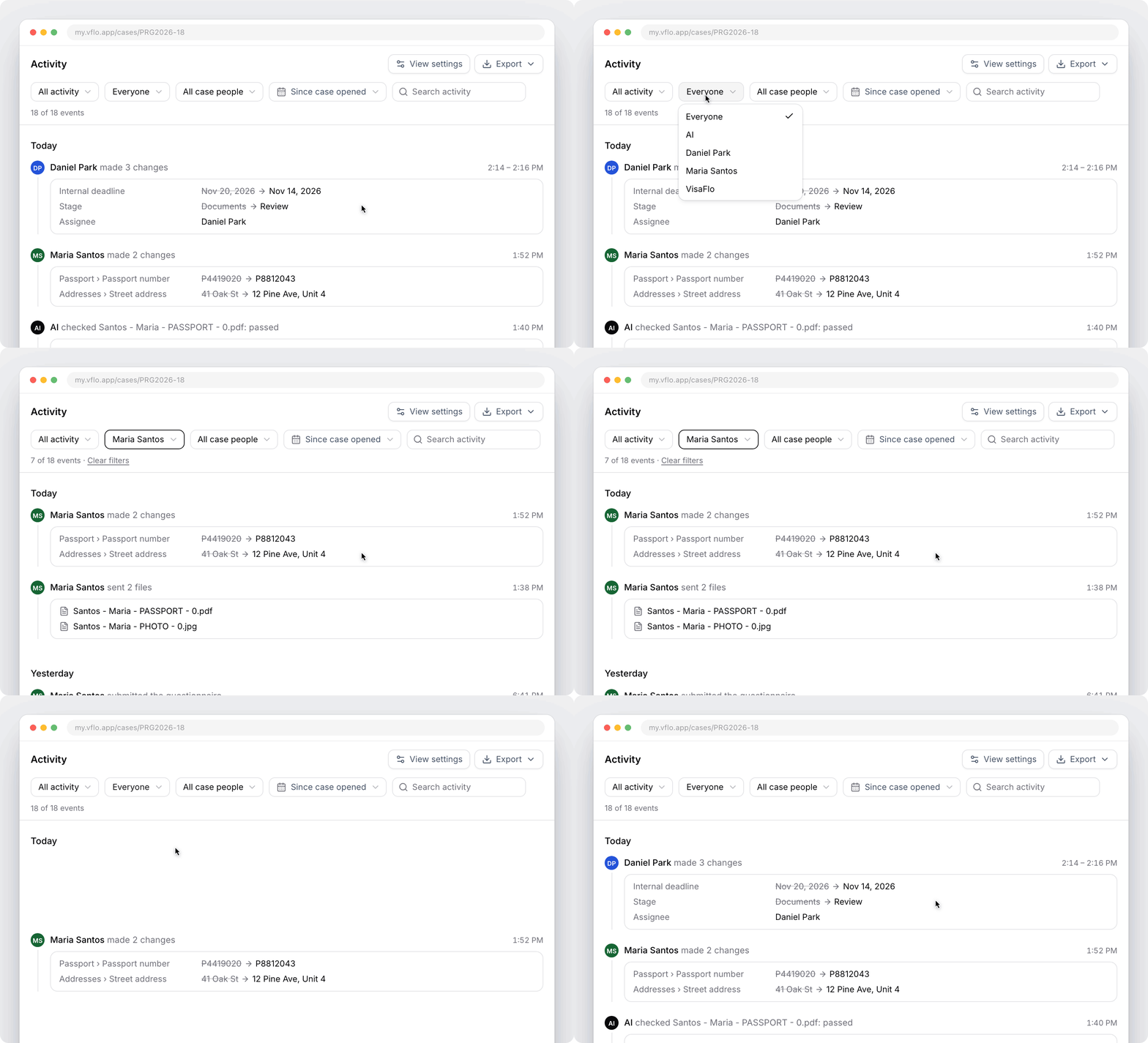
A case’s Activity tab now shows everything that happened on the case in one feed: emails, WhatsApp chats, notes, files, questionnaire answers, e-signatures, invoices and changes to the case itself. Each event says who did it and when.- Before and after for every change. A changed case field, a stage, an assignee or a questionnaire answer shows the old value crossed out next to the new one. If one person makes several changes in a row, they appear as one entry. Select Show all to see every line.
- Filter the feed. Choose the type of activity (All activity, Conversations or Changes), who did it, which person on the case it’s about and a date range, or search the feed. Clear filters brings everything back.
- Less noise. Automatic system events from the same day are folded into one line, and older months are collapsed. View settings hides kinds of events you don’t need.
- Full names on hover. If a long question or file name is cut off, hover over it to see the whole name.
Export an audit report
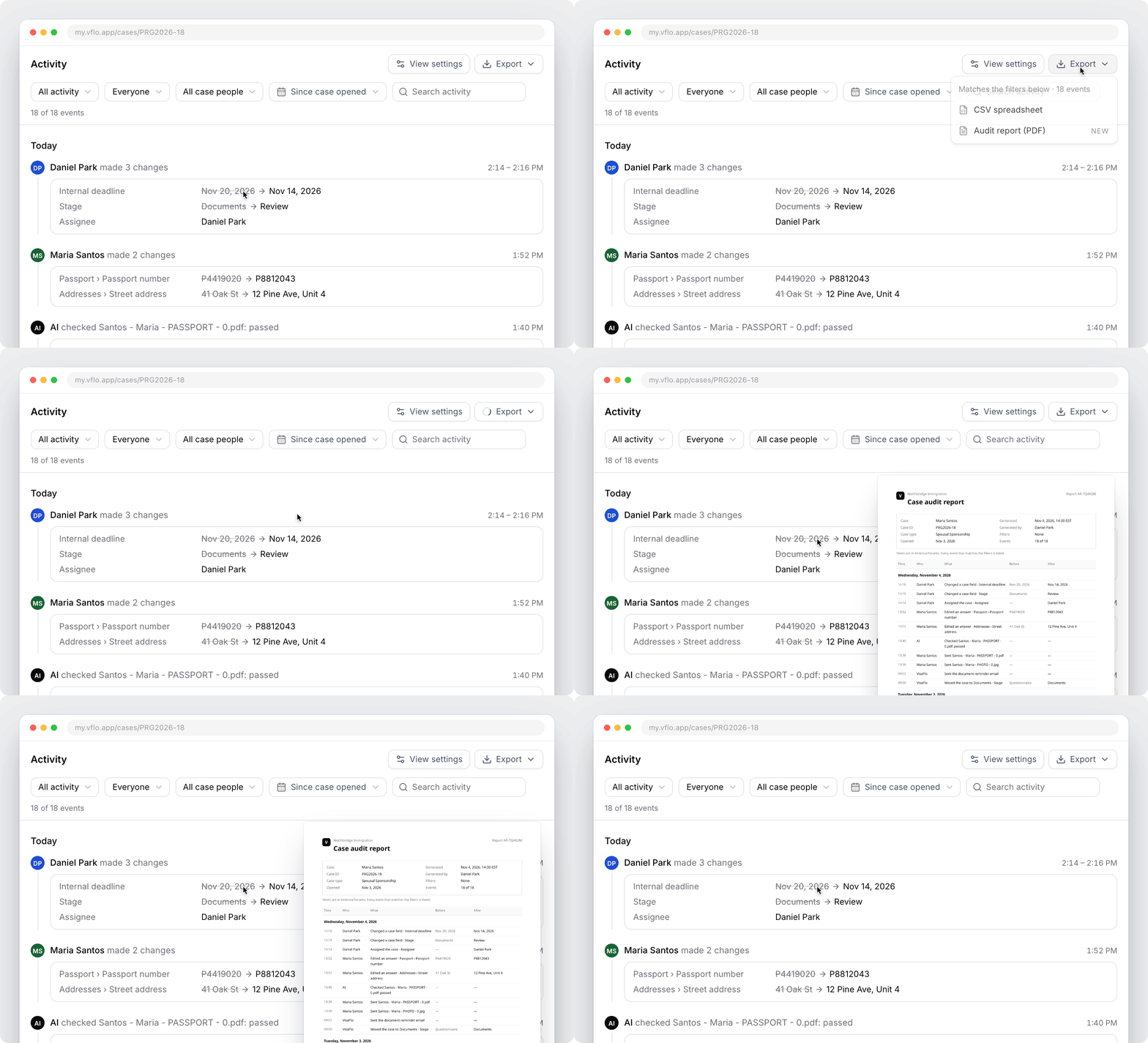
Select Export in the Activity tab to download the events that match your filters:- Audit report (PDF) lists every event with its time, who did it, what changed, and the values before and after. Events are grouped by day. The report includes your firm, the case, who generated it and when, the filters you used and a report ID, so you can attach it to a file or share it with a reviewer.
- CSV spreadsheet exports the same events for Excel or Google Sheets.
Green and Amber stages
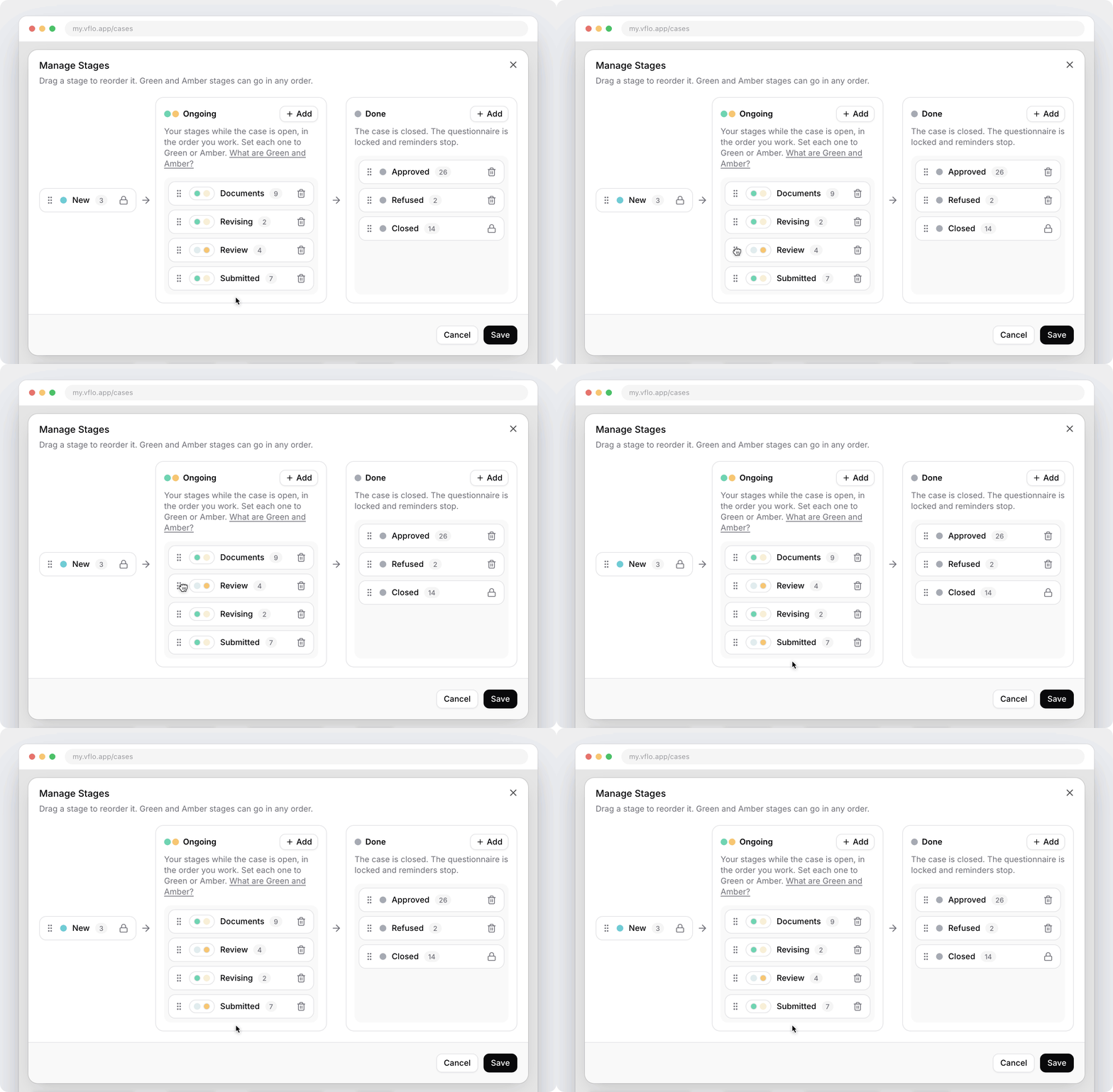
In Manage Stages, each Ongoing stage is now Green or Amber, and you can put them in any order. Drag a stage to move it, or select its dots to switch it between Green and Amber without moving it.- Green is for while you’re collecting answers and documents. The client can edit the questionnaire and gets reminders to finish it. Assignees get an email when the client changes answers.
- Amber is for when you have everything from the client, for example while the application is with IRCC. The questionnaire is locked for the client, and client reminders and assignee emails stop.
- In both, deadline reminders keep running and the case stays in the client portal. A stage in Done closes the case.
AI Scanner reads emails and WhatsApp chats
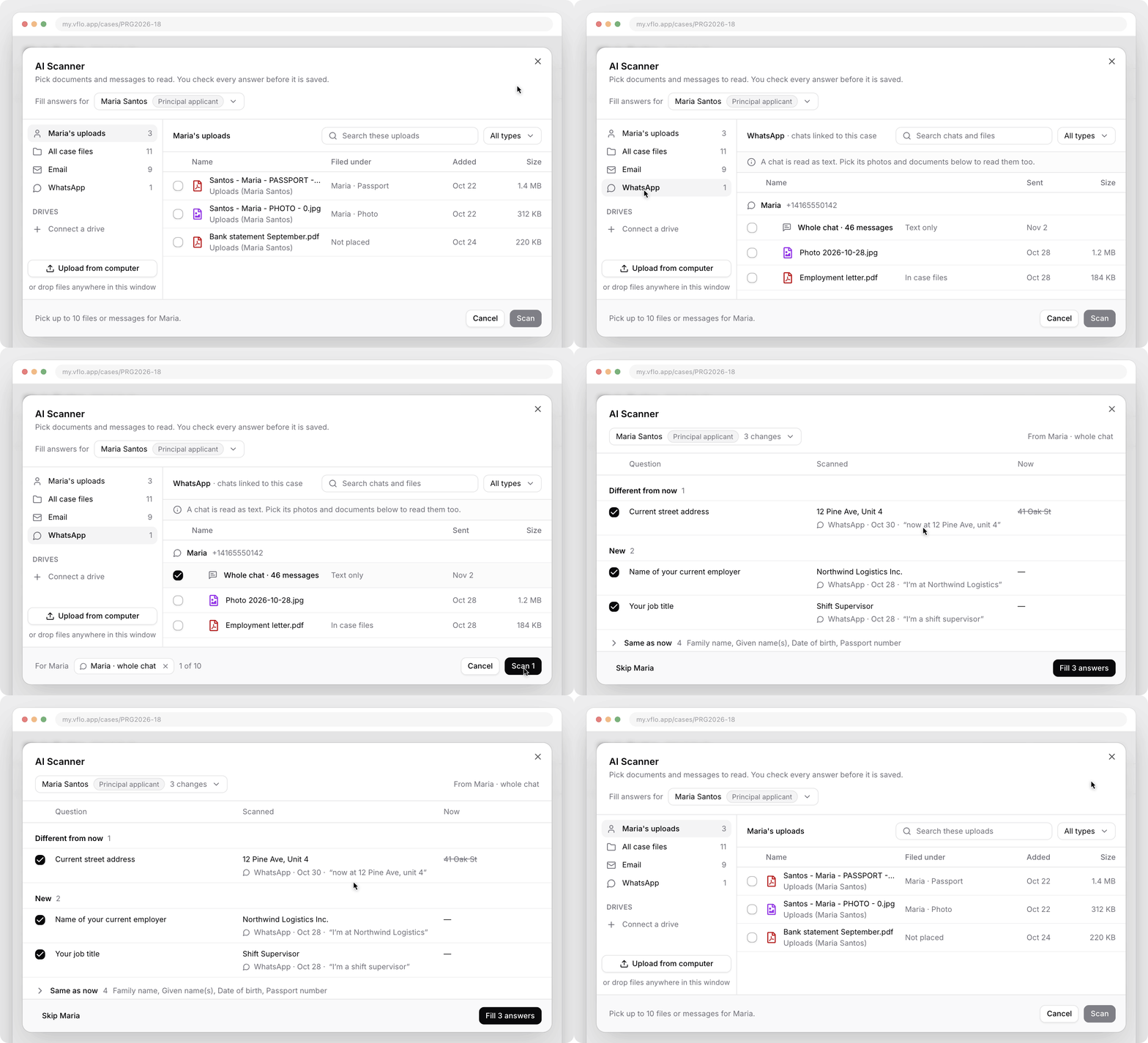
The AI Scanner can now read a case’s emails and WhatsApp chats, not just its files.- Email lists every email on the case, including emails without attachments. Tick an email to read its text. Its attachments are listed under it to pick separately.
- WhatsApp lists each chat as Whole chat, with its number of messages. Photos and documents from the chat are listed under it.
- On the review screen, a value that came from a message shows where it came from: the email or WhatsApp chat, the date and the line it was read from. Select it to open the message.
Review additional documents and questions
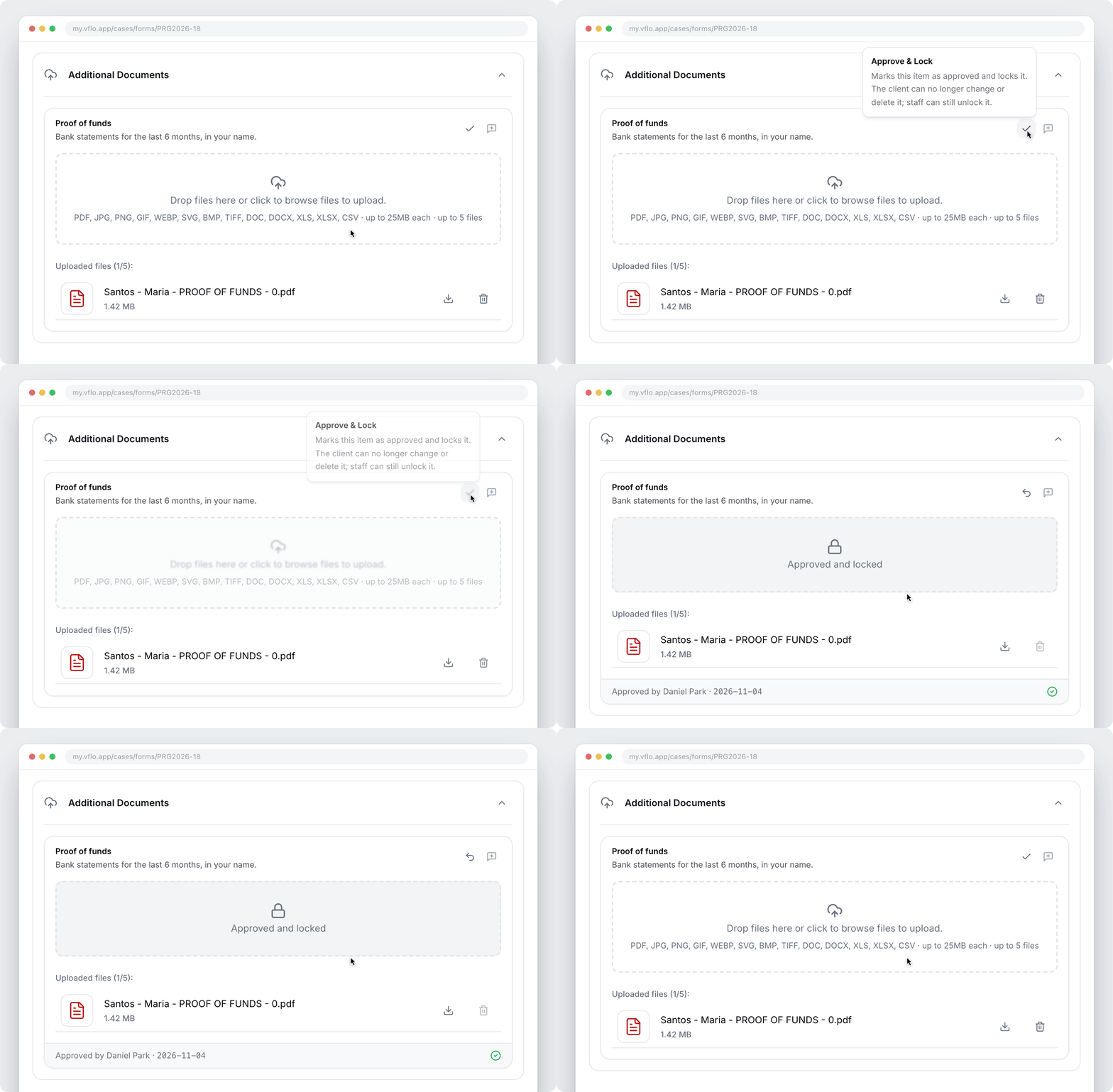
Additional Documents and Additional Questions now have the same review actions as the questionnaire’s documents.- Approve & Lock marks an item as approved and locks it. The client can no longer change or delete it, and the card shows who approved it and when. Your team can still unlock it.
- In Review Mode, Request Changes and comments work on these items too. The client sees what you asked for.
Images in question descriptions
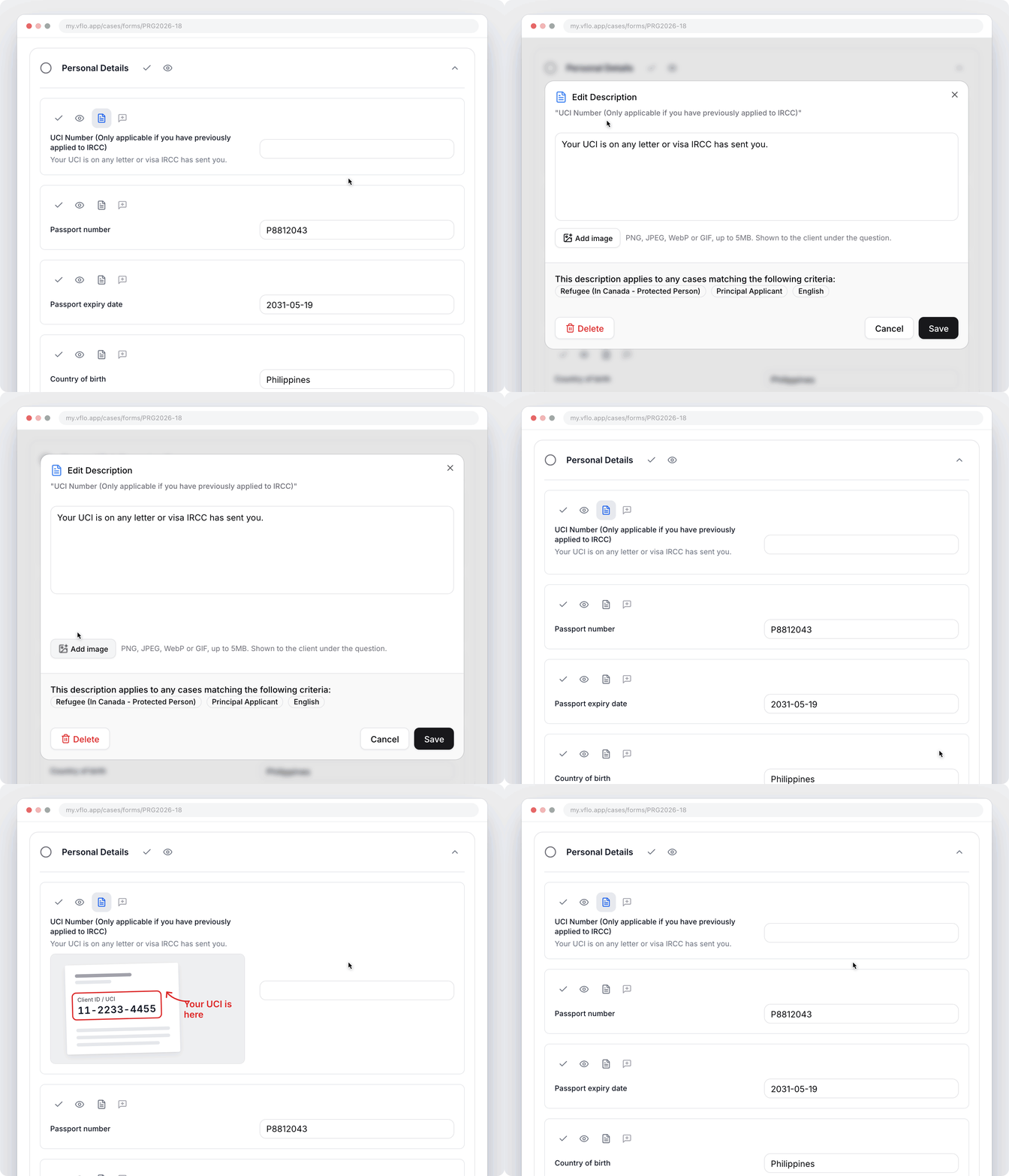
You can add images to a question’s description, for example a picture that shows the client where to find their UCI, or instructions in a language the questionnaire can’t display.- In Customize mode, select a question’s description button, then Add image. You can add PNG, JPEG, WebP or GIF images up to 5 MB each, with or without text.
- The client sees the images under the question. If there are several, they can step through them, and select one to see it full size.
Improved
- A contact’s phone number now links their WhatsApp chats by itself. Select Hide on a number you don’t want linked.
- An individual client can belong to an organization and an agent at the same time. Their profile shows Organization & Agent, and Contact via chooses whether mail goes to the agent or to the person. The Clients table has Organization and Agent columns.
- Set Cc on invites once on a case type in Settings › Case types, and every questionnaire invite for that case type copies those people.
- Questionnaires are easier to fill with the keyboard. Type a letter or use the arrow keys on a dropdown without opening it, Tab skips the calendar and the question’s action buttons, and Enter ticks a checkbox.
- A letter the AI is drafting is saved into the draft even if you leave the page, and letters are drafted faster.
- Letters list the enclosed documents from the Files tab checklist, not file names.
- Several fixes so IMM 5546 and IMM 0149 are generated and filled for every questionnaire that files Schedule A.