
Start with the recipient and invitation
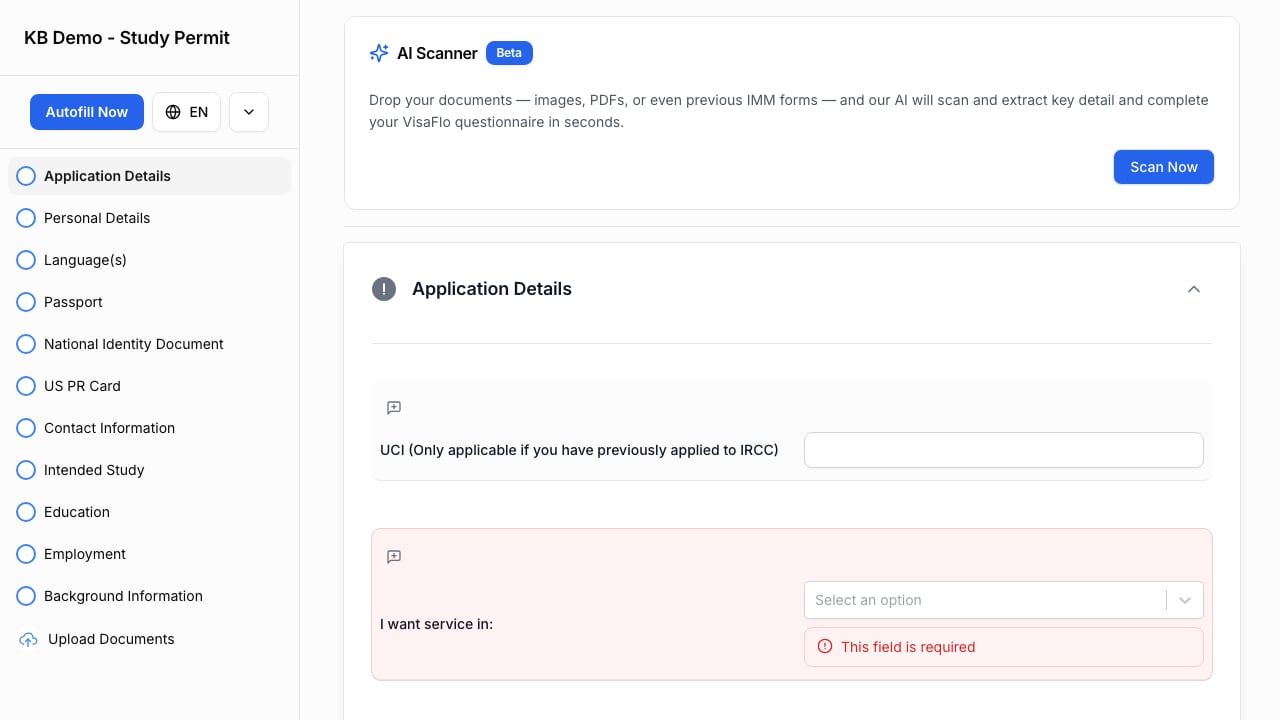
The client questionnaire experience after a recipient opens their secure invitation link. Confirm that the invitation was sent to the email address on the intended client or family-member record. Ask the recipient to open the latest link from the invitation rather than a forwarded or old browser bookmark. If an email is missing, check spam or filtered mail before sending another invite.

Check the case and form assignment

Open the case’s Forms tab and confirm:
  • The case is linked to the correct client.
  • The correct questionnaire or form set is present.
  • The case status allows the intended client access.
  • The invitation is associated with the right form or whole-questionnaire workflow.
  • A spouse or dependant form is assigned to the correct family-member email where applicable.

Distinguish portal sign-in from questionnaire access

Portal magic-link sign-in and a questionnaire invitation are different client-facing routes. A client who can sign in to the portal may still need the correct questionnaire assignment; a questionnaire recipient may not need general portal access for the specific form workflow. Use the link generated for the work you want the client to complete.

If the page opens but editing is blocked

Check whether the case was moved to a status that limits client edits, whether a review or lock state is active, and whether staff have requested a specific correction. Do not change the form structure just to restore access until you have identified the intended client workflow.

Escalate safely

Provide the case ID, recipient email domain only if needed, form or family-member role, invitation time, and the exact error text. Do not share a live invitation URL or unrelated client information in an unapproved support channel. See Client questionnaires and Client Portal.