> ## Documentation Index
> Fetch the complete documentation index at: https://visaflo.ca/knowledge-base/llms.txt
> Use this file to discover all available pages before exploring further.
# Record a Deposit
> Record client money coming into trust, including the received date and — for CICC firms — the by-law classification.
Record a deposit every time client money comes into your trust account. VisaFlo posts it to the ledger and, for CICC firms, checks it against the trust rules before saving.
## Open the deposit form
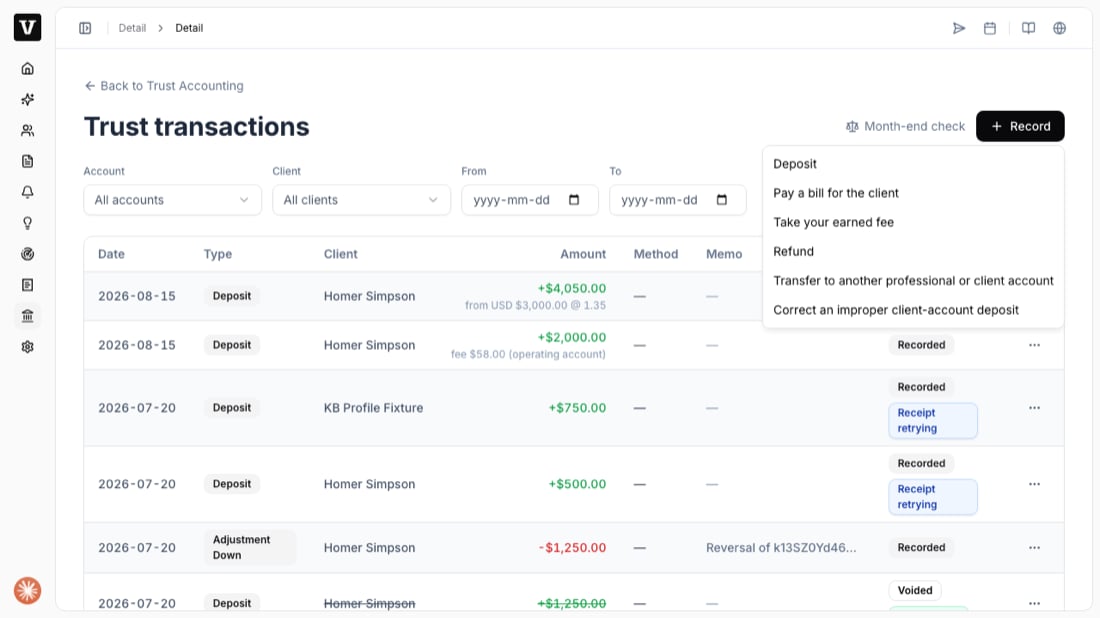
1. Open **Trust Accounting** and go to **Transactions** (or press **Record transaction** on the home screen).
2. Press **Record**, then choose **Deposit**.
 ## Fill in the deposit
Select the **trust account** and the **client**, then enter the **amount** and **date**.
For a **CICC** account, two extra fields appear:
## Fill in the deposit
Select the **trust account** and the **client**, then enter the **amount** and **date**.
For a **CICC** account, two extra fields appear:
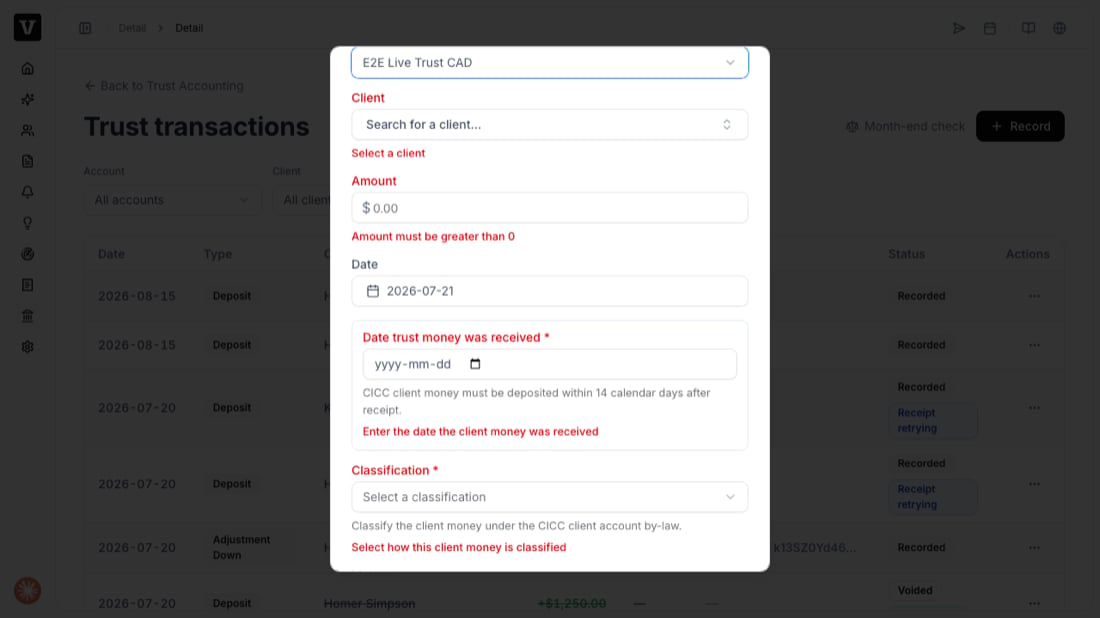 1. **Date trust money was received** — the day the client's money actually reached you. CICC requires the deposit to follow within **14 calendar days**.
2. **Classification** — which by-law category the money falls under.
## Choose a classification
Open the **Classification** dropdown and pick the category that matches the money you received.
1. **Date trust money was received** — the day the client's money actually reached you. CICC requires the deposit to follow within **14 calendar days**.
2. **Classification** — which by-law category the money falls under.
## Choose a classification
Open the **Classification** dropdown and pick the category that matches the money you received.
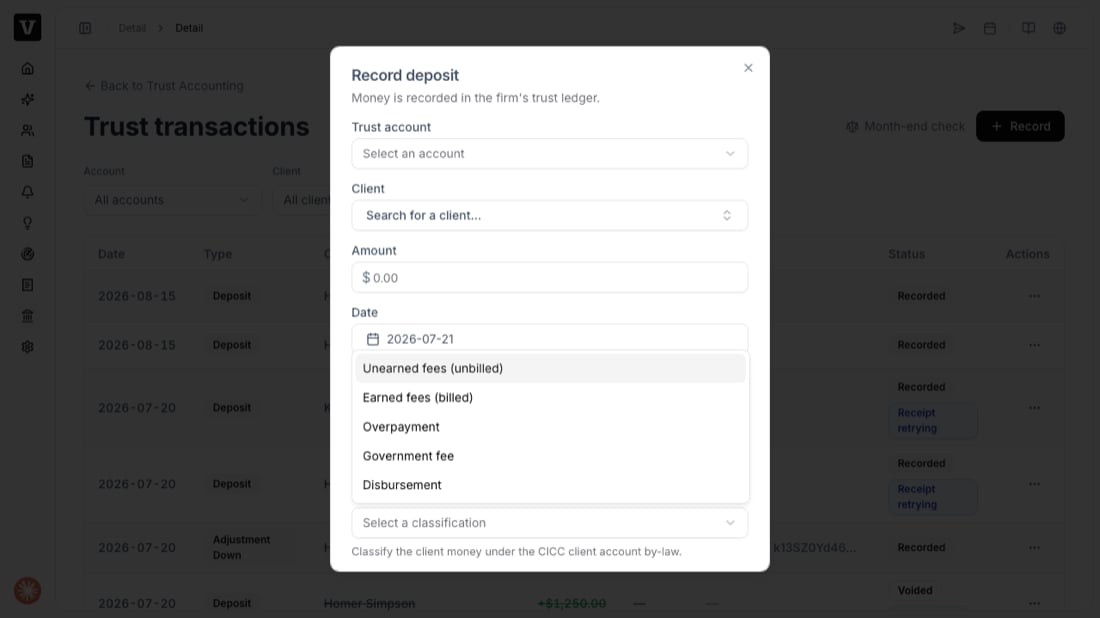 | Classification | Use it for |
| ---------------------------- | ---------------------------------------------------- |
| **Unearned fees (unbilled)** | A retainer for work not yet done or billed |
| **Earned fees (billed)** | Fees you've already billed (Model 1 only) |
| **Overpayment** | The client paid more than they owed |
| **Government fee** | Money to cover a government / filing fee |
| **Disbursement** | Money to cover a disbursement on the client's behalf |
On **Model 2**, *Earned fees (billed)* money must not go into the trust account, so that classification is rejected. If you're unsure which model your firm uses, check **Settings → Trust Accounting**.
Press **Record**. The deposit appears in the transactions list and the client's trust balance goes up.
## Troubleshooting
* **"CICC deposits require classification" / "…require the date the client money was received"** — one of the two required fields above is empty. Fill it in and record again.
* **"…must be deposited within 14 calendar days after receipt"** — the received date is more than 14 days before the deposit date. Confirm the real dates.
* **The Classification field isn't showing** — you're on a non-CICC account (LSO/LSBC use *Purpose* instead), or the account isn't a CICC trust account.
| Classification | Use it for |
| ---------------------------- | ---------------------------------------------------- |
| **Unearned fees (unbilled)** | A retainer for work not yet done or billed |
| **Earned fees (billed)** | Fees you've already billed (Model 1 only) |
| **Overpayment** | The client paid more than they owed |
| **Government fee** | Money to cover a government / filing fee |
| **Disbursement** | Money to cover a disbursement on the client's behalf |
On **Model 2**, *Earned fees (billed)* money must not go into the trust account, so that classification is rejected. If you're unsure which model your firm uses, check **Settings → Trust Accounting**.
Press **Record**. The deposit appears in the transactions list and the client's trust balance goes up.
## Troubleshooting
* **"CICC deposits require classification" / "…require the date the client money was received"** — one of the two required fields above is empty. Fill it in and record again.
* **"…must be deposited within 14 calendar days after receipt"** — the received date is more than 14 days before the deposit date. Confirm the real dates.
* **The Classification field isn't showing** — you're on a non-CICC account (LSO/LSBC use *Purpose* instead), or the account isn't a CICC trust account.