> ## Documentation Index
> Fetch the complete documentation index at: https://visaflo.ca/knowledge-base/llms.txt
> Use this file to discover all available pages before exploring further.
# Connect an AI Assistant
> Connect Claude, ChatGPT, or another MCP-compatible AI assistant so it can answer questions about your VisaFlo cases, clients, leads, tasks, files, and more in natural language.
## Overview
VisaFlo publishes a Model Context Protocol (MCP) server so an AI assistant can read your workspace and answer questions in plain language, such as "which cases are due this week?" or "summarize the form answers for this client's case."
The connection is **read-only**. The assistant can look up and summarize your data, but it cannot create, edit, or delete cases, clients, files, or any other record. Every request is scoped to your own workspace, so an assistant connected to your firm can never see another firm's data.
Any MCP-compatible assistant works. This guide walks through **Claude** and **ChatGPT** with screenshots; the same server URL works with other MCP clients. The screens below are from the desktop apps — the web versions follow the same steps.
## Before you start
* You connect with your **own VisaFlo login** — the assistant acts as you and sees only what your account is allowed to see.
* An administrator can disable the AI assistant connection for the whole firm. If your firm has turned it off, the connection will not return data. See [Manage and disconnect](#manage-and-disconnect).
* The server URL is the same for every firm:
```text theme={null}
https://mcp.vflo.app
```
You do not create an API key for this. Authorization happens through a sign-in and consent screen when you connect.
## Connect Claude
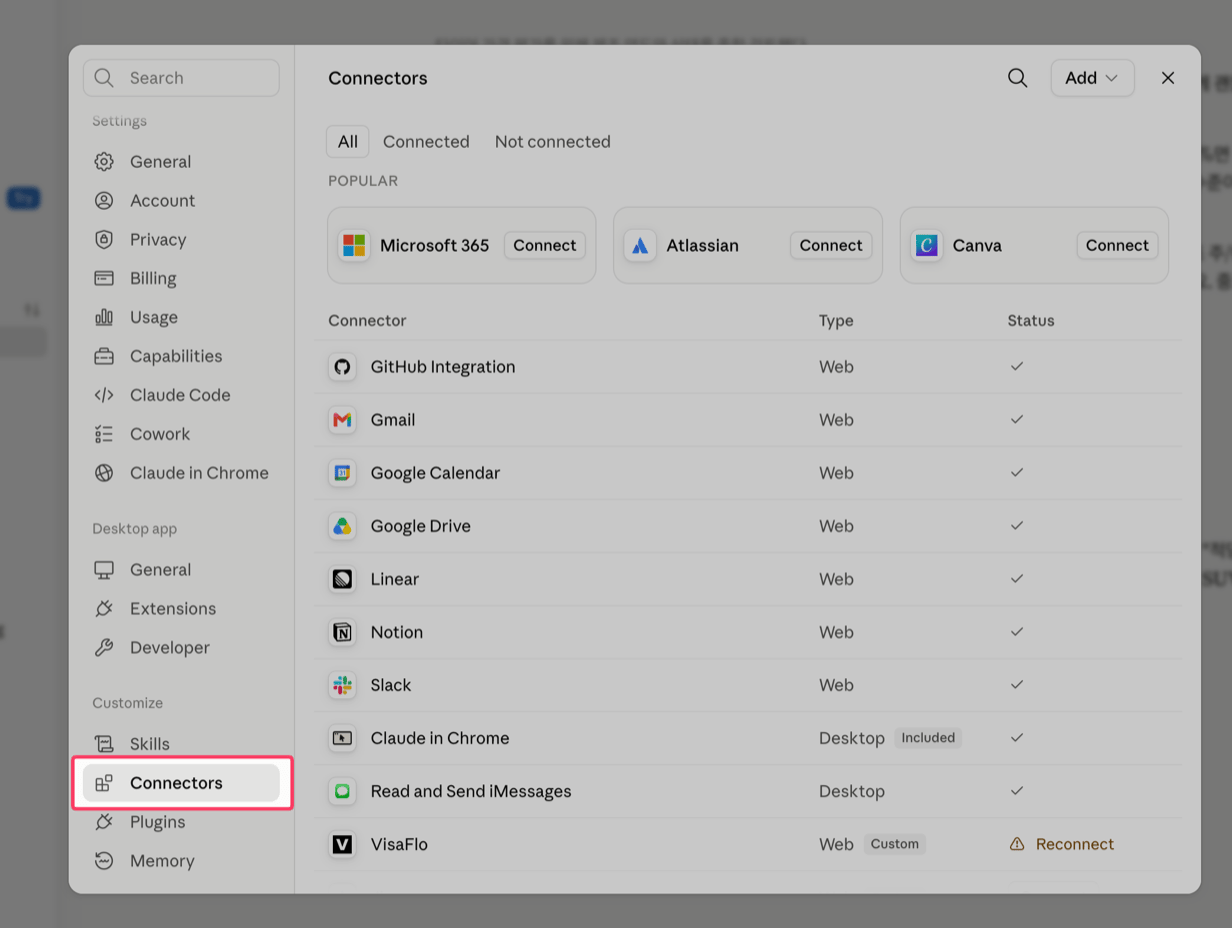
1. Open **Settings**, then select **Connectors** in the left sidebar.
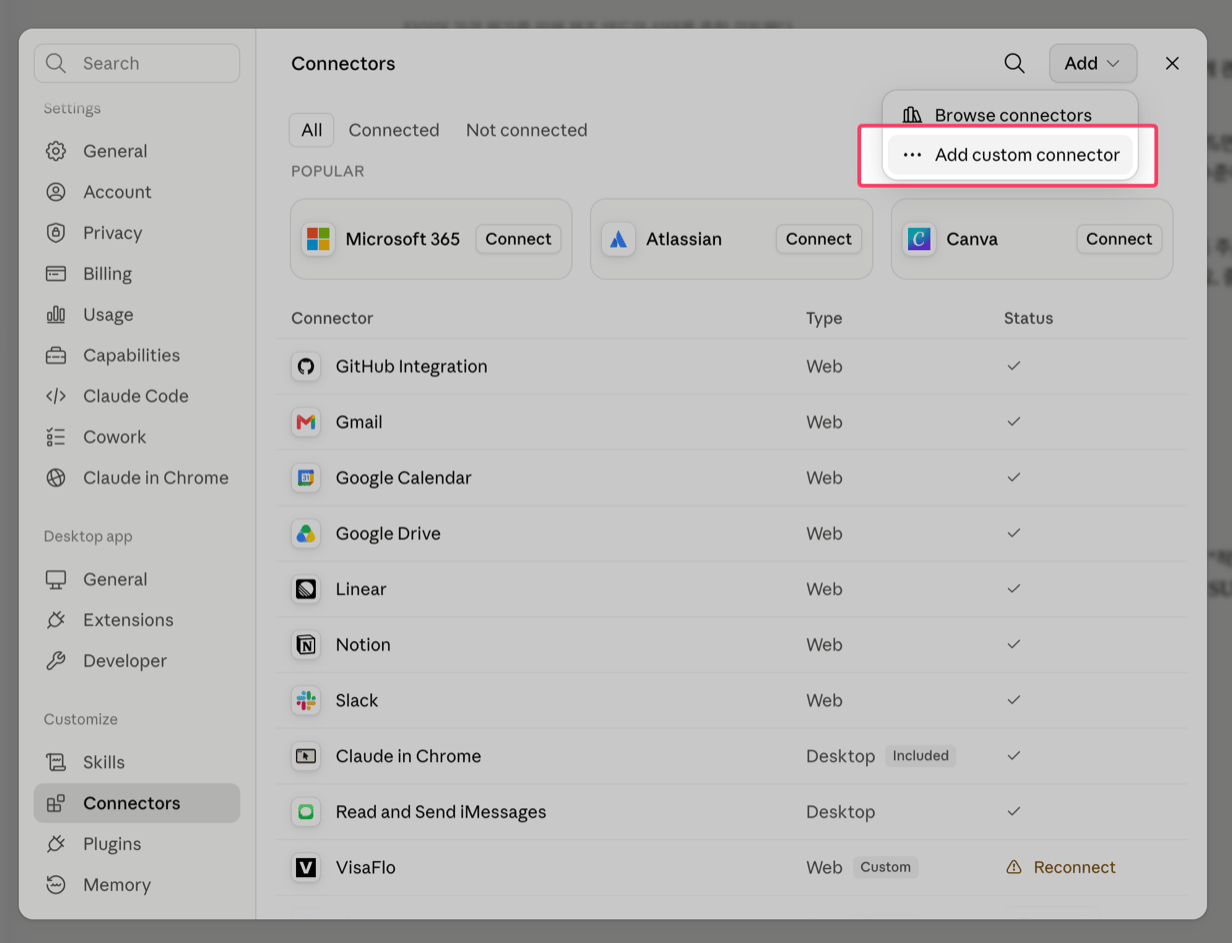
 2. Open the **Add** menu in the top right, then choose **Add custom connector**.
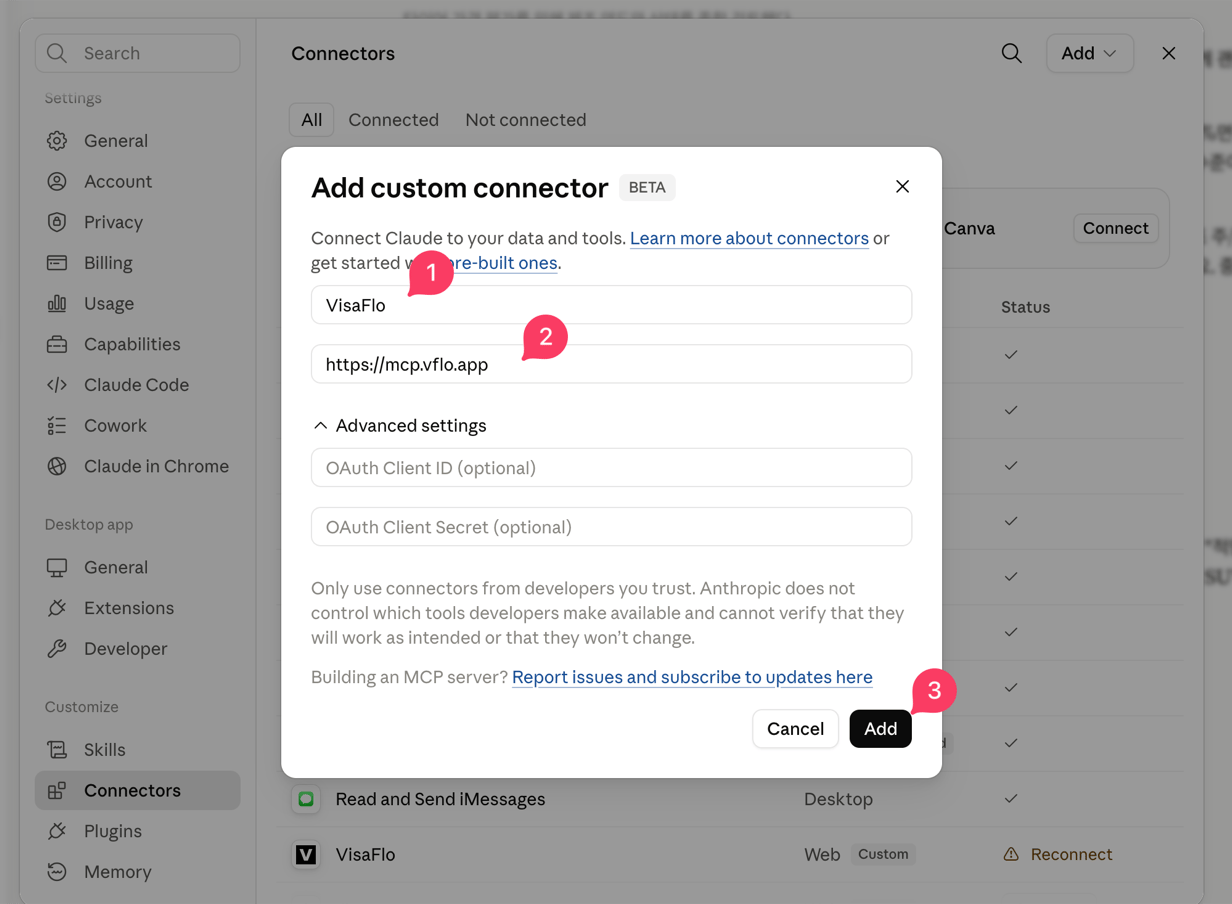
 3. In the dialog, enter a **name** (for example, `VisaFlo`) and paste the URL `https://mcp.vflo.app`, then select **Add**. You can leave the Advanced settings (OAuth fields) blank.
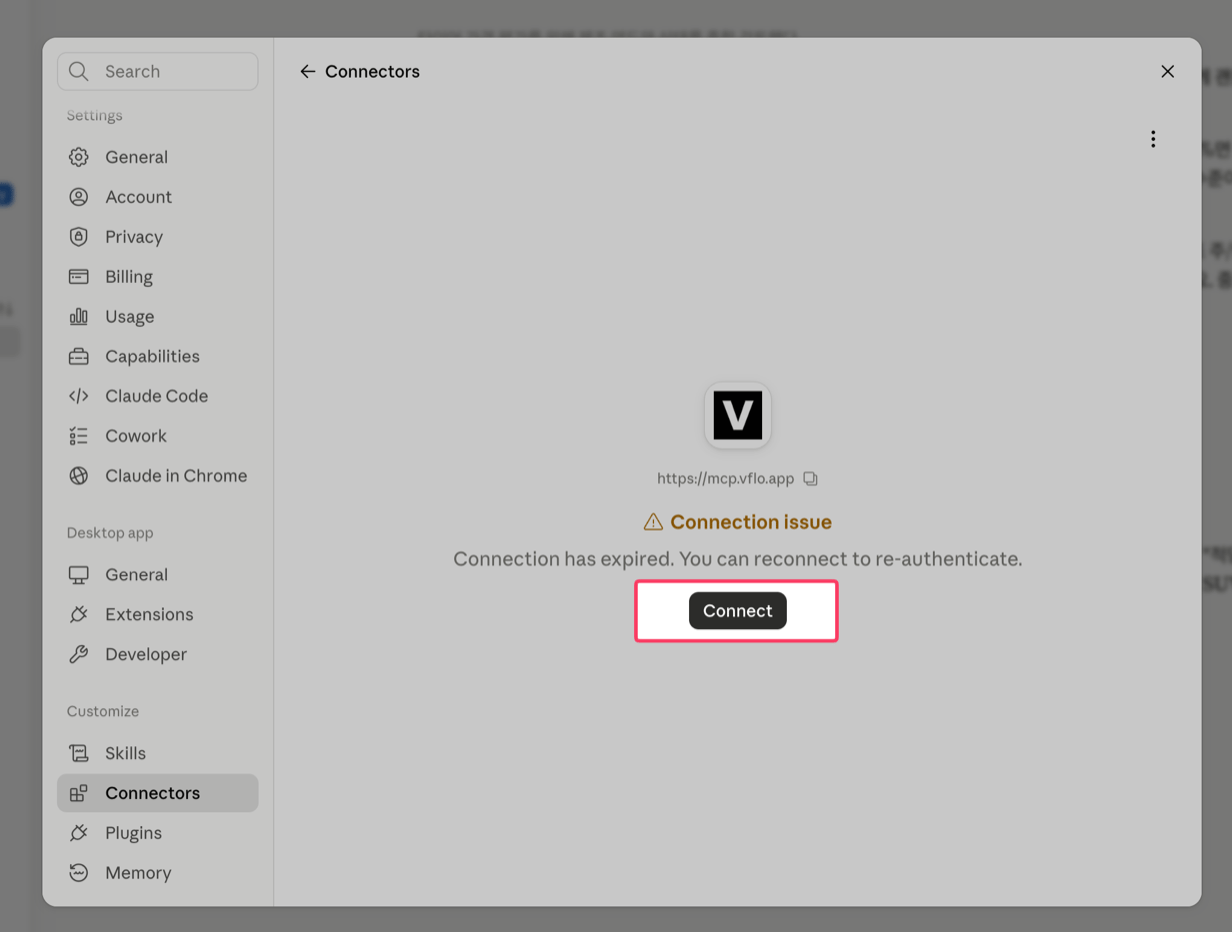
 4. Select **Connect**. Claude opens a VisaFlo sign-in page — log in with the same email and password you use in the dashboard, review the access on the consent screen, and select **Allow**.
 5. Ask a question about your cases, clients, leads, tasks, or files. See [Try it](#try-it).
## Connect ChatGPT
1. Open **Settings**, then select **Plugins** under Integrations in the left sidebar.
5. Ask a question about your cases, clients, leads, tasks, or files. See [Try it](#try-it).
## Connect ChatGPT
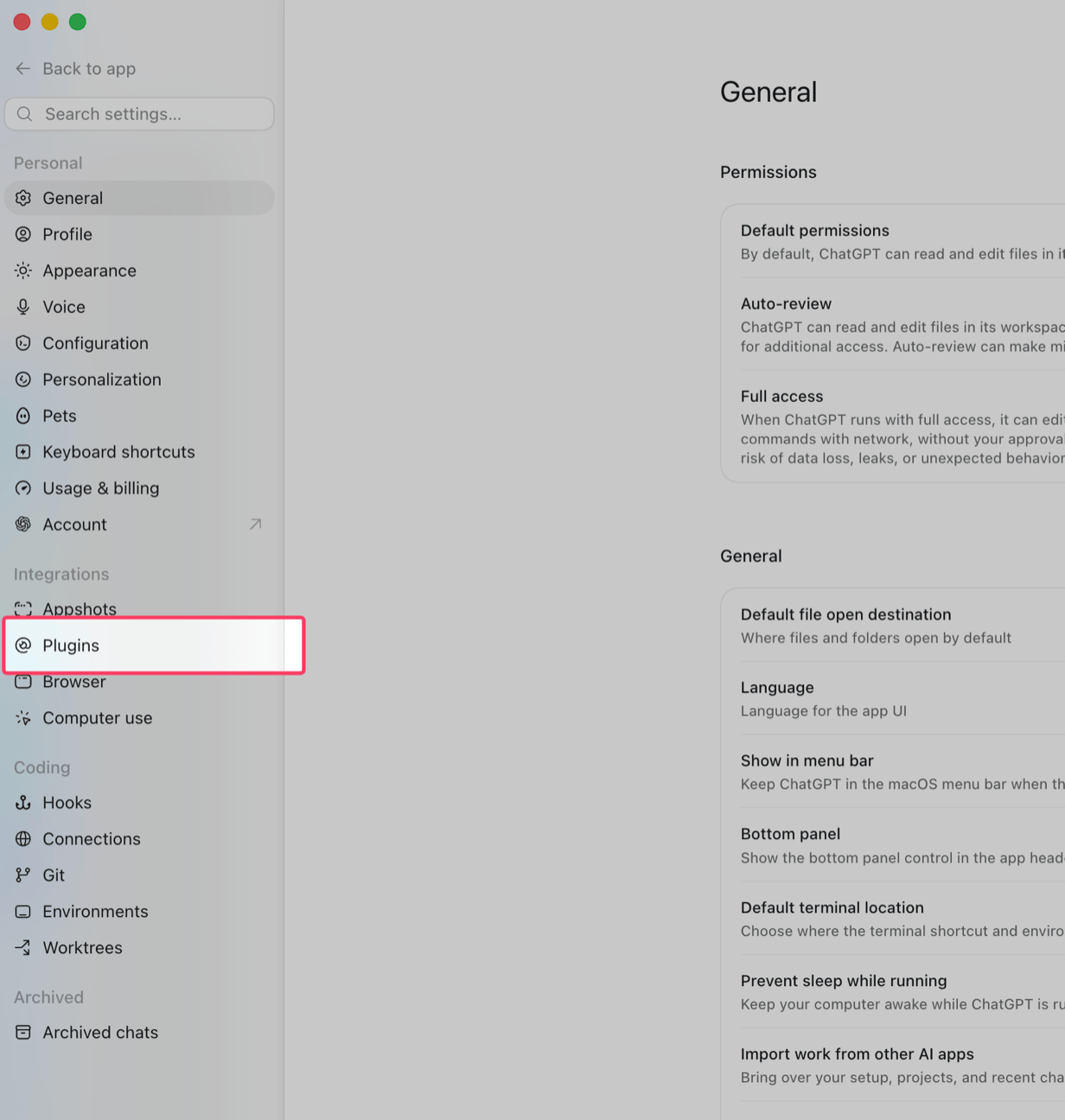
1. Open **Settings**, then select **Plugins** under Integrations in the left sidebar.
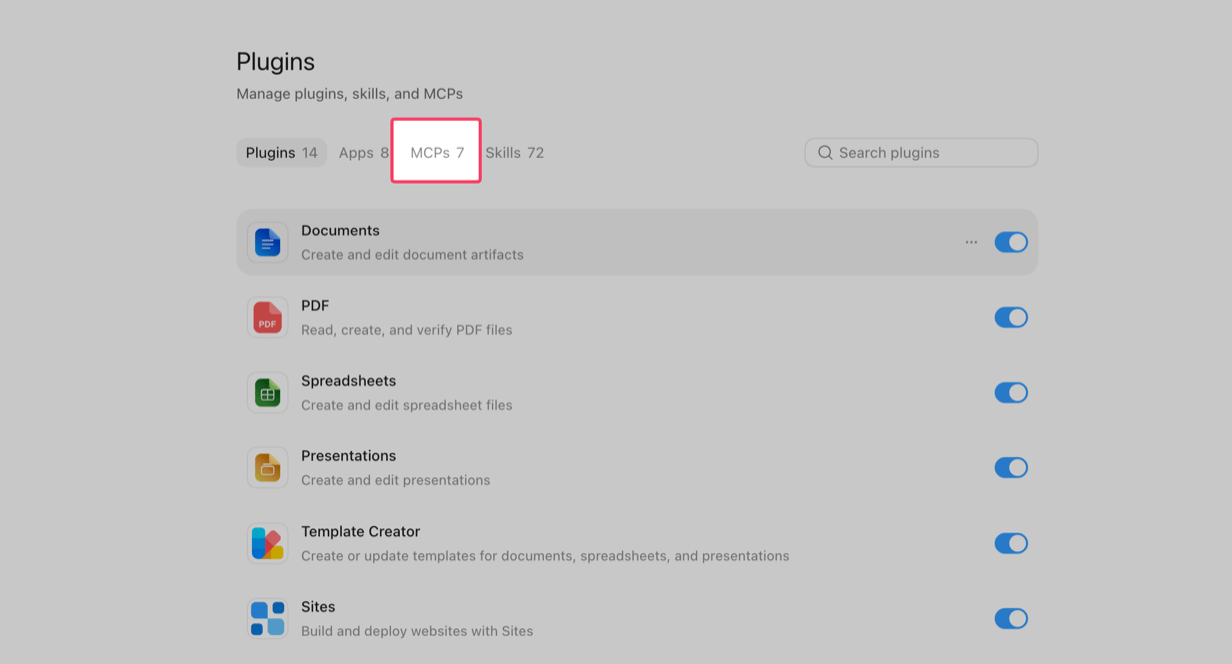
 2. On the Plugins screen, select the **MCPs** tab.
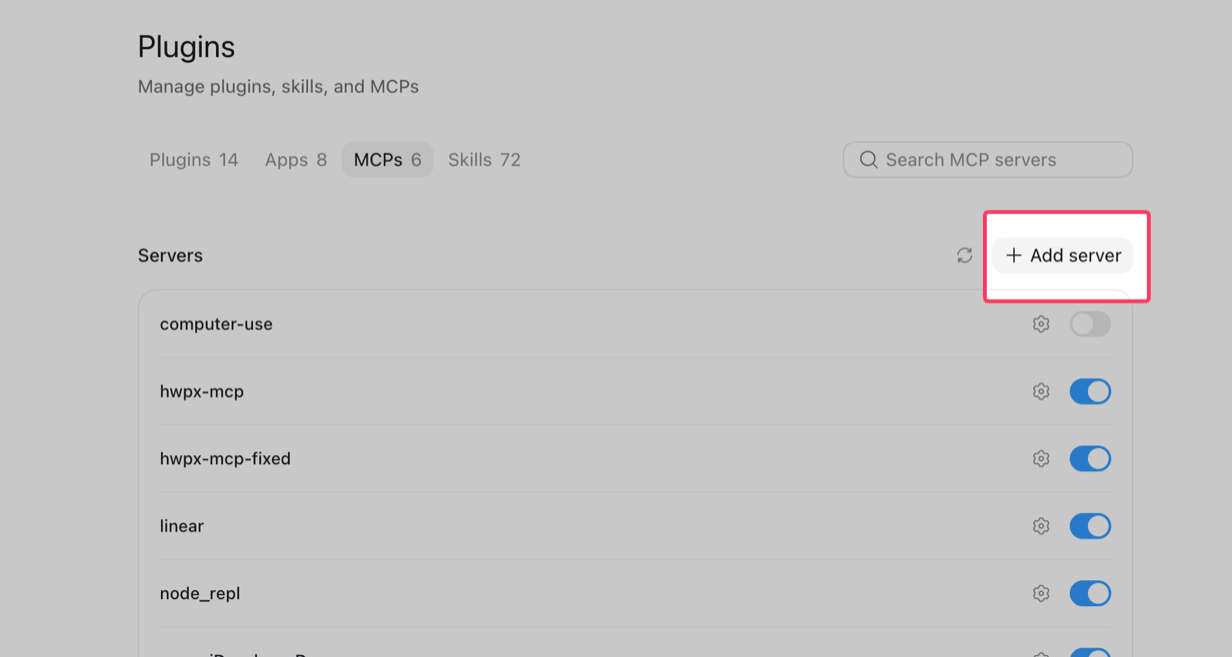
 3. Select **+ Add server** in the top right of the Servers list.
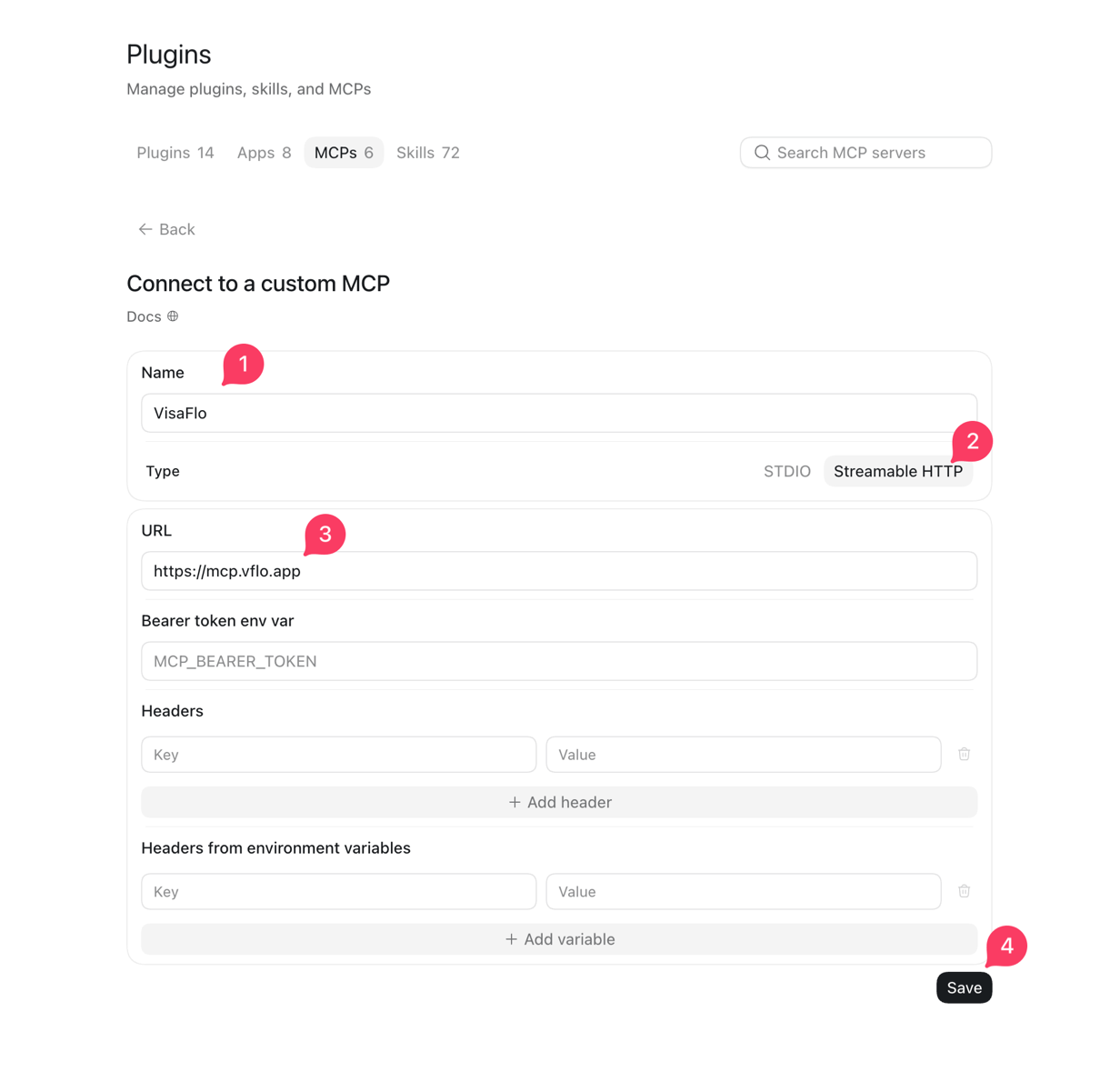
 4. Fill in the connection form: set a **Name** (for example, `VisaFlo`), set **Type** to **Streamable HTTP**, paste the URL `https://mcp.vflo.app`, and select **Save**. Leave the bearer-token and header fields blank.
 5. ChatGPT opens a VisaFlo sign-in page. Use the same email and password you use in the dashboard, review the requested access on the consent screen, and select **Allow**.
6. Ask ChatGPT a question about your VisaFlo data. See [Try it](#try-it).
The exact labels and layout in Claude and ChatGPT change over time. If a screen looks different from these captures, look for the same idea — a **Connectors**, **MCP**, or **custom server** option — and enter the URL `https://mcp.vflo.app`.
You can also start the same flow from the dashboard at **Settings → Connected apps → Set up a connection**, which shows the copyable URL and step-by-step tabs.
## What the assistant can access
Once connected, the assistant can **read** the following, always scoped to your workspace:
| Area | What the assistant can read |
| -------------------- | -------------------------------------------------------------------------------------------------------------------------------------------------------------- |
| Cases | List, search, and open cases; case statistics. |
| Clients | List, search, and open client records. |
| Leads | List and open leads; lead statistics. |
| Tasks and reminders | List tasks and reminders. |
| Case files | List and search files, get a download link for a file, and list recent uploads across all your cases. |
| Form answers | Read and search a case's questionnaire and form answers. |
| Questionnaire status | See, per questionnaire, whether the client submitted it or only edited it, whether it was reviewed and by whom, and whether it was autofilled. |
| Document checklist | See which requested documents are satisfied and which are still outstanding on a case. |
| Briefs | Read a generated case brief or client brief (case detail, form answers, tasks, reminders, files, questionnaire status, and outstanding documents in one call). |
| Emails and comments | List and read emails, formal review comments, and the inline field notes reviewers and clients leave on a questionnaire. |
| Invoices | List and open invoices; invoice statistics. |
The assistant **cannot** create, change, or delete any of these records, and it cannot move a case, send an invitation, or upload a file. Treat it as a read-only analyst over your existing data.
## Try it
Once connected, try one of these prompts in your assistant:
* What cases are due this week?
* Show me leads assigned to me with status qualified.
* Summarize the form answers for \[client name]'s case.
* List files on case \[id] and give me a download link for the most recent one.
* For \[client name]'s case, did the client submit each questionnaire or only edit it, and has it been reviewed?
* Which documents are still outstanding on \[client name]'s case?
* What did clients upload across my cases since yesterday?
For a full set of copy-ready prompts organized by daily task — with real example answers — see [AI assistant daily workflows](/knowledge-base/knowledge-base/guide/ai-assistant-daily-workflows).
## Manage and disconnect
* **Disconnect one assistant:** open **Settings → Connected apps** in the dashboard and revoke the connection you no longer want. The assistant immediately loses access.
* **Disable for the whole firm:** an administrator can turn the AI assistant connection off for every member of the firm. When it is disabled, new connections cannot be authorized and existing ones stop returning data.
Connect only assistants your firm trusts with the records they will read, and disconnect any connection that no longer has a business purpose. Do not paste unreviewed sensitive case data into an external prompt merely because a connection exists.
## Troubleshooting
* **The assistant keeps sending you to a login page.** Sign in with your VisaFlo dashboard credentials and complete the consent screen. The connection is not active until you select **Allow**.
* **The assistant can't find or connect to the server.** Confirm the URL is exactly `https://mcp.vflo.app` with no trailing path or typo, then add the connector again.
* **The assistant connects but returns no data.** Your firm may have disabled the AI assistant connection. Ask an administrator to re-enable it, then reconnect.
* **The assistant says it can't make a change.** This is expected. The connection is read-only. Make edits in the dashboard.
## Related
* [Which integrations VisaFlo supports and what can be automated with APIs](/knowledge-base/knowledge-base/faq/which-integrations-visaflo-supports-and-what-can-be-automated-with-apis)
* [How the AI assistant connection works, what it can read, and how to revoke access](/knowledge-base/knowledge-base/faq/how-the-ai-assistant-mcp-connection-works-what-it-can-read-and-how-to-revoke-access)
* [VisaFlo API](/knowledge-base/knowledge-base/developers/index) for building your own integrations
5. ChatGPT opens a VisaFlo sign-in page. Use the same email and password you use in the dashboard, review the requested access on the consent screen, and select **Allow**.
6. Ask ChatGPT a question about your VisaFlo data. See [Try it](#try-it).
The exact labels and layout in Claude and ChatGPT change over time. If a screen looks different from these captures, look for the same idea — a **Connectors**, **MCP**, or **custom server** option — and enter the URL `https://mcp.vflo.app`.
You can also start the same flow from the dashboard at **Settings → Connected apps → Set up a connection**, which shows the copyable URL and step-by-step tabs.
## What the assistant can access
Once connected, the assistant can **read** the following, always scoped to your workspace:
| Area | What the assistant can read |
| -------------------- | -------------------------------------------------------------------------------------------------------------------------------------------------------------- |
| Cases | List, search, and open cases; case statistics. |
| Clients | List, search, and open client records. |
| Leads | List and open leads; lead statistics. |
| Tasks and reminders | List tasks and reminders. |
| Case files | List and search files, get a download link for a file, and list recent uploads across all your cases. |
| Form answers | Read and search a case's questionnaire and form answers. |
| Questionnaire status | See, per questionnaire, whether the client submitted it or only edited it, whether it was reviewed and by whom, and whether it was autofilled. |
| Document checklist | See which requested documents are satisfied and which are still outstanding on a case. |
| Briefs | Read a generated case brief or client brief (case detail, form answers, tasks, reminders, files, questionnaire status, and outstanding documents in one call). |
| Emails and comments | List and read emails, formal review comments, and the inline field notes reviewers and clients leave on a questionnaire. |
| Invoices | List and open invoices; invoice statistics. |
The assistant **cannot** create, change, or delete any of these records, and it cannot move a case, send an invitation, or upload a file. Treat it as a read-only analyst over your existing data.
## Try it
Once connected, try one of these prompts in your assistant:
* What cases are due this week?
* Show me leads assigned to me with status qualified.
* Summarize the form answers for \[client name]'s case.
* List files on case \[id] and give me a download link for the most recent one.
* For \[client name]'s case, did the client submit each questionnaire or only edit it, and has it been reviewed?
* Which documents are still outstanding on \[client name]'s case?
* What did clients upload across my cases since yesterday?
For a full set of copy-ready prompts organized by daily task — with real example answers — see [AI assistant daily workflows](/knowledge-base/knowledge-base/guide/ai-assistant-daily-workflows).
## Manage and disconnect
* **Disconnect one assistant:** open **Settings → Connected apps** in the dashboard and revoke the connection you no longer want. The assistant immediately loses access.
* **Disable for the whole firm:** an administrator can turn the AI assistant connection off for every member of the firm. When it is disabled, new connections cannot be authorized and existing ones stop returning data.
Connect only assistants your firm trusts with the records they will read, and disconnect any connection that no longer has a business purpose. Do not paste unreviewed sensitive case data into an external prompt merely because a connection exists.
## Troubleshooting
* **The assistant keeps sending you to a login page.** Sign in with your VisaFlo dashboard credentials and complete the consent screen. The connection is not active until you select **Allow**.
* **The assistant can't find or connect to the server.** Confirm the URL is exactly `https://mcp.vflo.app` with no trailing path or typo, then add the connector again.
* **The assistant connects but returns no data.** Your firm may have disabled the AI assistant connection. Ask an administrator to re-enable it, then reconnect.
* **The assistant says it can't make a change.** This is expected. The connection is read-only. Make edits in the dashboard.
## Related
* [Which integrations VisaFlo supports and what can be automated with APIs](/knowledge-base/knowledge-base/faq/which-integrations-visaflo-supports-and-what-can-be-automated-with-apis)
* [How the AI assistant connection works, what it can read, and how to revoke access](/knowledge-base/knowledge-base/faq/how-the-ai-assistant-mcp-connection-works-what-it-can-read-and-how-to-revoke-access)
* [VisaFlo API](/knowledge-base/knowledge-base/developers/index) for building your own integrations