> ## Documentation Index
> Fetch the complete documentation index at: https://visaflo.ca/knowledge-base/llms.txt
> Use this file to discover all available pages before exploring further.
# Case Document Checklist
> Track every document a case needs, adjust the request for one client, and accept or return uploads without leaving the case.
## What the case checklist is for
Every case opens with a document checklist built from your firm's [checklist template](/knowledge-base/knowledge-base/settings/document-checklist-templates) for that case type. The checklist is where you see, in one place, what the client still owes you and what you have already approved.
Open the case and select the **Files** tab. The checklist sits beside the File Manager, so you can move between "what was requested" and "what was actually uploaded" without switching screens.
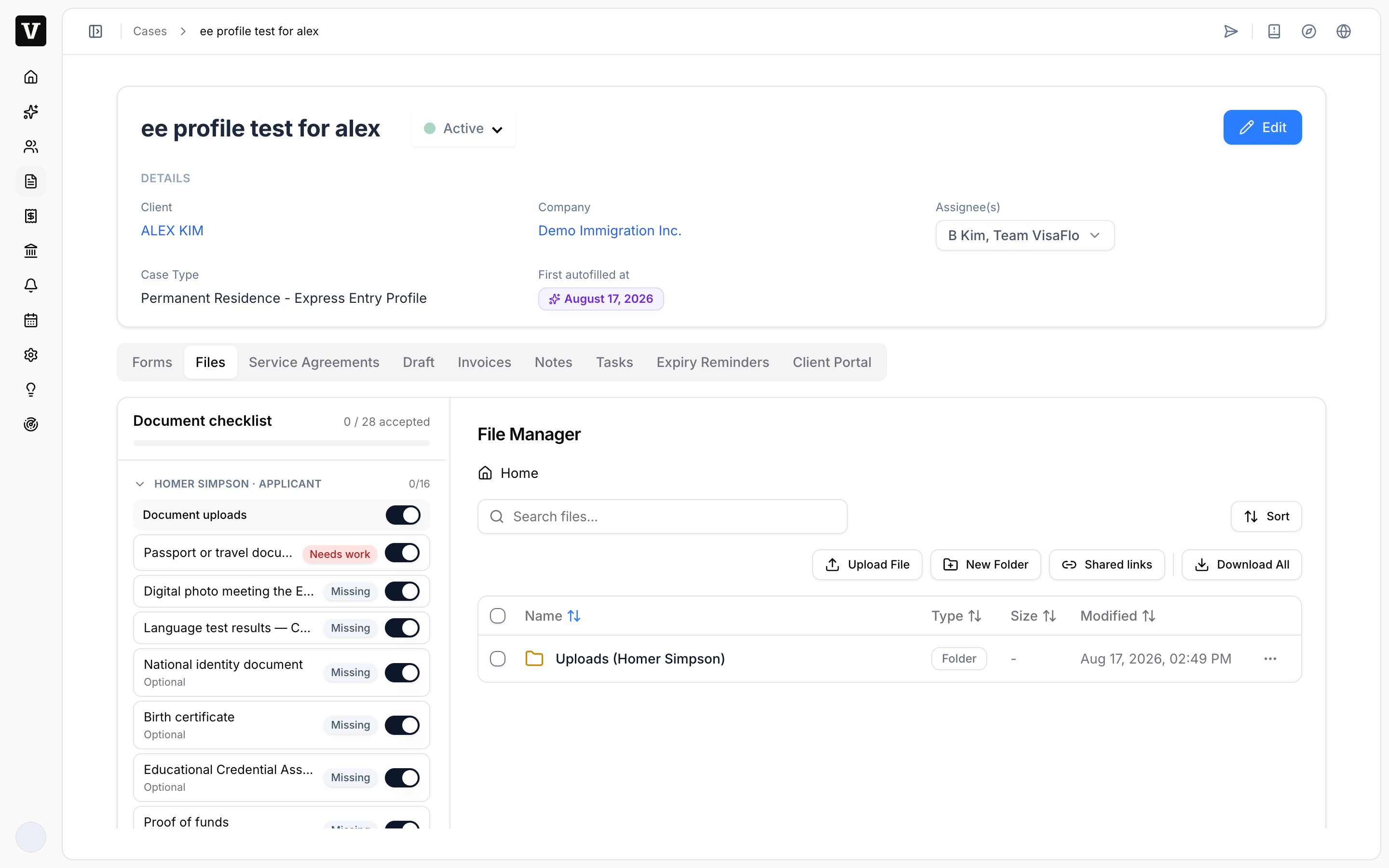 Case Files tab showing the document checklist beside the File Manager
The header shows overall progress as `accepted / requested`. Each member of the case has its own section with its own count, because a document requested from the principal applicant is not automatically requested from a spouse or dependant.
Case Files tab showing the document checklist beside the File Manager
The header shows overall progress as `accepted / requested`. Each member of the case has its own section with its own count, because a document requested from the principal applicant is not automatically requested from a spouse or dependant.
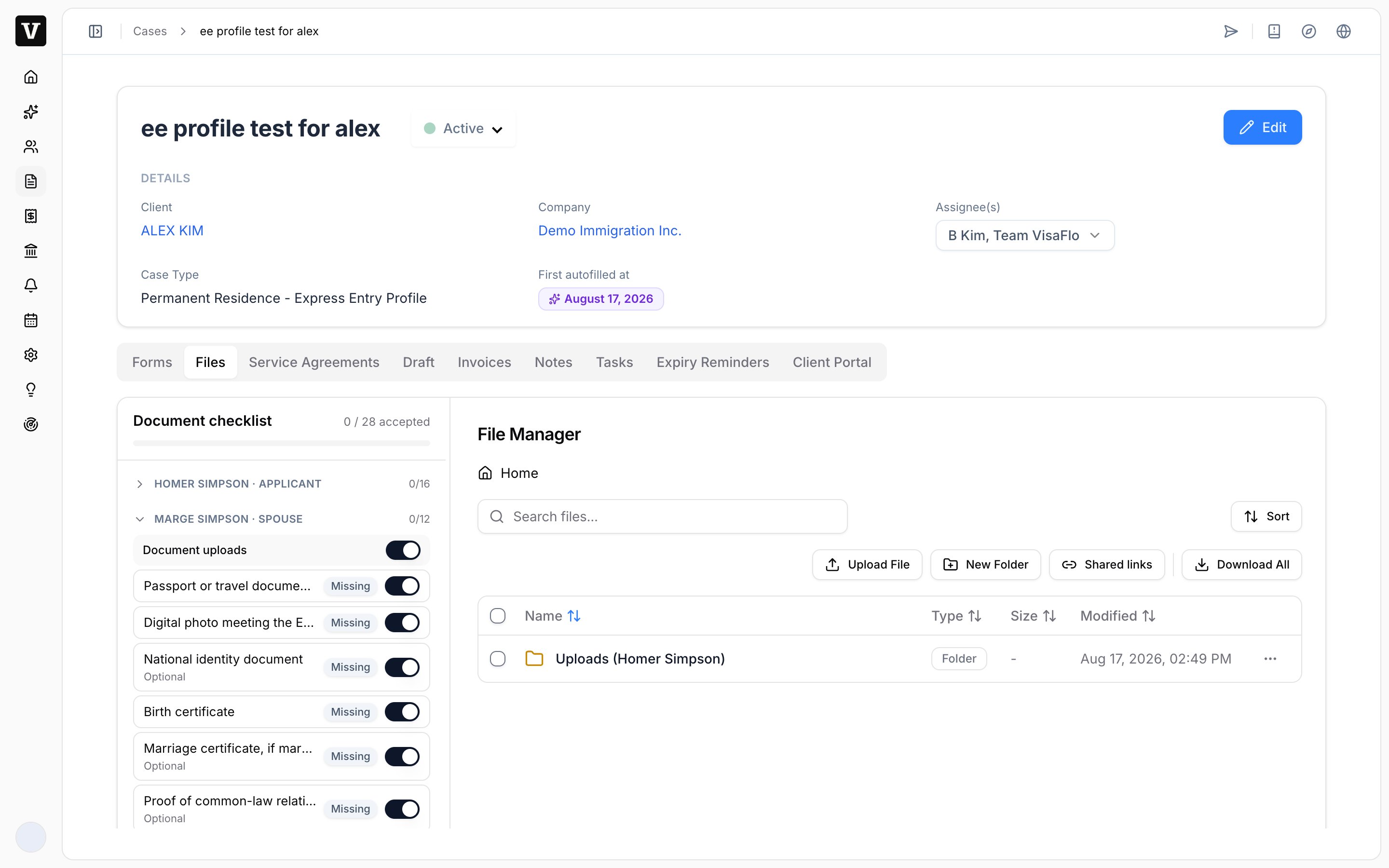 Checklist sections for the applicant and the spouse, each with its own count
## Read a document row
Each row shows the document name, whether it is optional, and its current status.
| Status | Meaning |
| -------------- | ------------------------------------------------------------ |
| **Missing** | Requested, nothing uploaded yet |
| **Pending** | The client uploaded a file and it is waiting for your review |
| **Needs work** | You asked the client for a correction |
| **Accepted** | You approved the upload |
Documents your firm does not request appear at the bottom under **Not requested**. This includes documents excluded by your checklist template and country-specific documents that do not apply to this applicant's visa office.
## Adjust the request for one client
Switch a document on or off directly on the row. The change applies to this case only and reaches the client's questionnaire and portal immediately, so make the change before you send a reminder rather than after.
Use this when a single client needs something the template does not cover, or when a requested document genuinely does not apply. For a change that should apply to every future case, edit the [checklist template](/knowledge-base/knowledge-base/settings/document-checklist-templates) instead.
## Review an upload
Selecting a document row opens the matching folder in the File Manager and highlights the file, so you can review the actual upload before you decide.
Checklist sections for the applicant and the spouse, each with its own count
## Read a document row
Each row shows the document name, whether it is optional, and its current status.
| Status | Meaning |
| -------------- | ------------------------------------------------------------ |
| **Missing** | Requested, nothing uploaded yet |
| **Pending** | The client uploaded a file and it is waiting for your review |
| **Needs work** | You asked the client for a correction |
| **Accepted** | You approved the upload |
Documents your firm does not request appear at the bottom under **Not requested**. This includes documents excluded by your checklist template and country-specific documents that do not apply to this applicant's visa office.
## Adjust the request for one client
Switch a document on or off directly on the row. The change applies to this case only and reaches the client's questionnaire and portal immediately, so make the change before you send a reminder rather than after.
Use this when a single client needs something the template does not cover, or when a requested document genuinely does not apply. For a change that should apply to every future case, edit the [checklist template](/knowledge-base/knowledge-base/settings/document-checklist-templates) instead.
## Review an upload
Selecting a document row opens the matching folder in the File Manager and highlights the file, so you can review the actual upload before you decide.
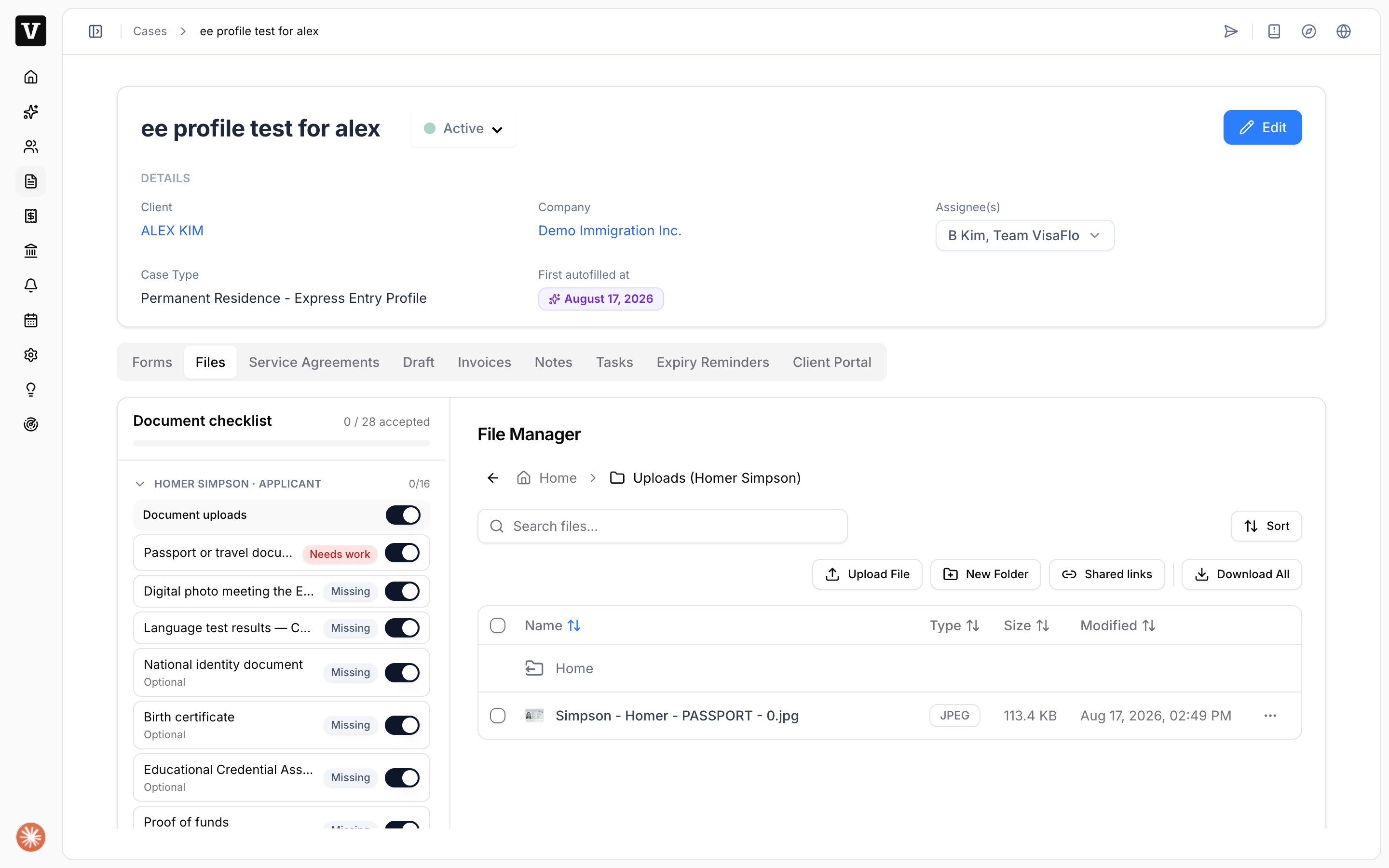 Reviewed document row with the File Manager opened on the matching upload folder
1. Select the status chip on the document row.
2. Choose **Accept** to approve the upload, or **Request changes** to return it.
3. When you request changes, write what the client must fix and select **Send**.
Reviewed document row with the File Manager opened on the matching upload folder
1. Select the status chip on the document row.
2. Choose **Accept** to approve the upload, or **Request changes** to return it.
3. When you request changes, write what the client must fix and select **Send**.
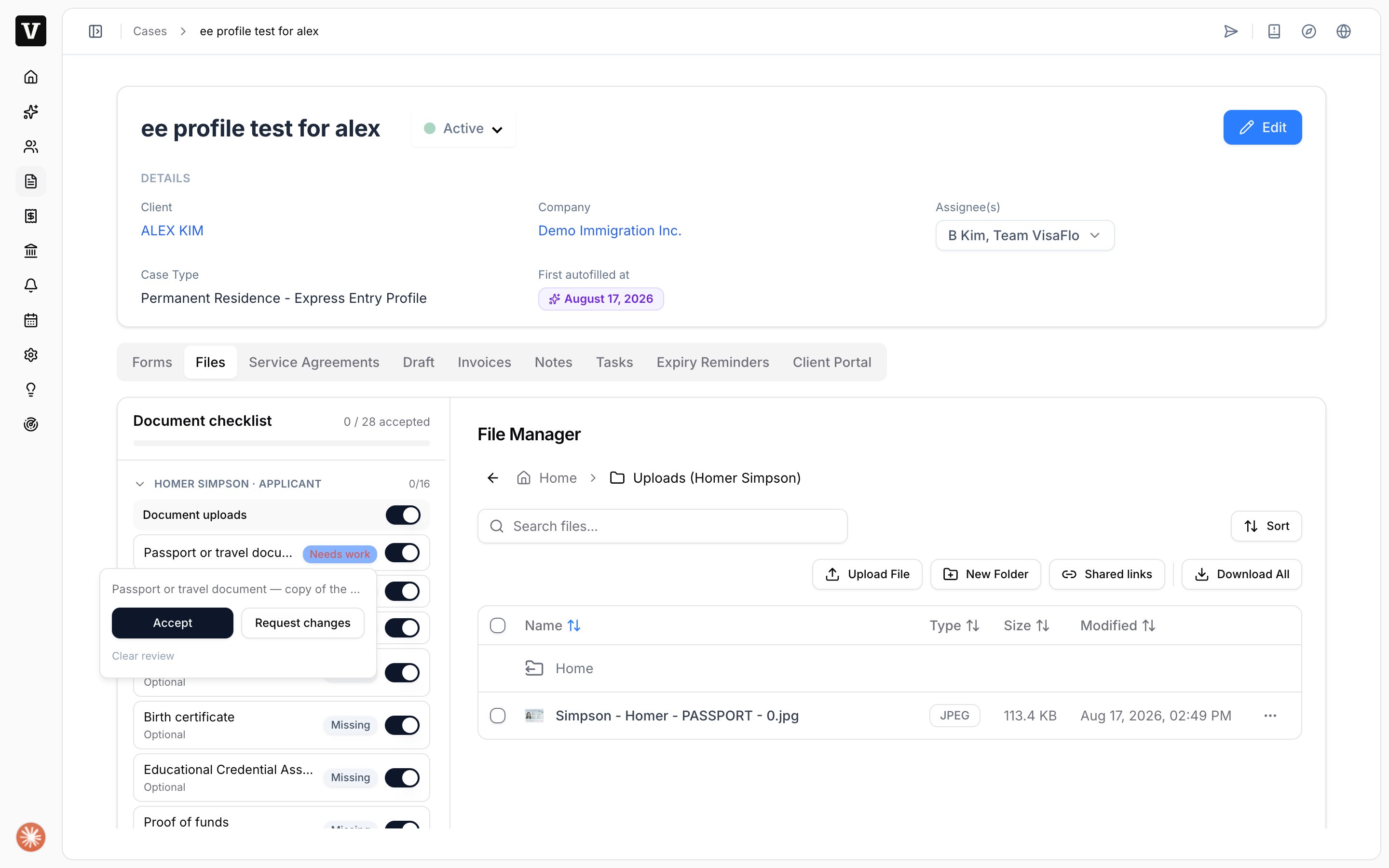 Review options on a document: Accept, Request changes, and Clear review
The client sees your message as a note on that upload field in their questionnaire, together with a **Changes Requested** marker, so they know exactly which file to replace. Be specific: name the problem and the fix, not just the document.
Use **Clear review** on an already-reviewed document if you need to return it to an unreviewed state.
## Confirm the request before you invite
The invitation is your last check before the client sees the list. In the **Forms** tab, select **Invite**, then open **Documents to request** to review the exact documents each member will be asked for. Uncheck anything this client should not receive.
Continue with [Send Invitation](/knowledge-base/knowledge-base/questionnaires/send-invitation).
## Next steps
* Use [Comments](/knowledge-base/knowledge-base/questionnaires/comments) when the issue is with an answer rather than a file.
* Use [Upload Files](/knowledge-base/knowledge-base/files/upload-files) for staff-managed evidence that the client does not need to see.
* Turn on [Client Portal](/knowledge-base/knowledge-base/portal/client-portal) visibility when the client should track progress themselves.
## Troubleshooting
**A template change is missing from this case.** Checklist templates apply to new cases only. Adjust the document directly on this case.
**A country-specific document is not requested.** These are requested only when the applicant's country matches the responsible visa office. Switch it on for this case if you need it anyway.
**The client cannot find where to upload.** Confirm the document is switched on for the correct member. Each member has a separate checklist section, and a document requested from the principal applicant is not automatically requested from a spouse or dependant.
**An upload is not showing as Pending.** Refresh the case. If the client saw a file-quality warning during upload, they may have removed the file instead of continuing.
Review options on a document: Accept, Request changes, and Clear review
The client sees your message as a note on that upload field in their questionnaire, together with a **Changes Requested** marker, so they know exactly which file to replace. Be specific: name the problem and the fix, not just the document.
Use **Clear review** on an already-reviewed document if you need to return it to an unreviewed state.
## Confirm the request before you invite
The invitation is your last check before the client sees the list. In the **Forms** tab, select **Invite**, then open **Documents to request** to review the exact documents each member will be asked for. Uncheck anything this client should not receive.
Continue with [Send Invitation](/knowledge-base/knowledge-base/questionnaires/send-invitation).
## Next steps
* Use [Comments](/knowledge-base/knowledge-base/questionnaires/comments) when the issue is with an answer rather than a file.
* Use [Upload Files](/knowledge-base/knowledge-base/files/upload-files) for staff-managed evidence that the client does not need to see.
* Turn on [Client Portal](/knowledge-base/knowledge-base/portal/client-portal) visibility when the client should track progress themselves.
## Troubleshooting
**A template change is missing from this case.** Checklist templates apply to new cases only. Adjust the document directly on this case.
**A country-specific document is not requested.** These are requested only when the applicant's country matches the responsible visa office. Switch it on for this case if you need it anyway.
**The client cannot find where to upload.** Confirm the document is switched on for the correct member. Each member has a separate checklist section, and a document requested from the principal applicant is not automatically requested from a spouse or dependant.
**An upload is not showing as Pending.** Refresh the case. If the client saw a file-quality warning during upload, they may have removed the file instead of continuing.