> ## Documentation Index
> Fetch the complete documentation index at: https://visaflo.ca/knowledge-base/llms.txt
> Use this file to discover all available pages before exploring further.
# Creating a Case
> Create a case, assign the team, verify the case type, and prepare the client intake workflow.
## Create a case
1. Open **Cases** and select **Add Case**.
2. Choose the client. Create the client first when they do not yet have a record.
3. Enter a clear case name and select the case type that matches the application workflow.
4. Add assignees who need access to the work.
5. Create the case.
Choose the case type carefully: it determines the available questionnaire, document requests, and any supported autofill workflow. If the application path is uncertain, create the client and lead first rather than starting an incorrect case.
## Find and review a case
Use **Cases** to search by case ID or title, check the current status, and confirm the linked client before opening a record.
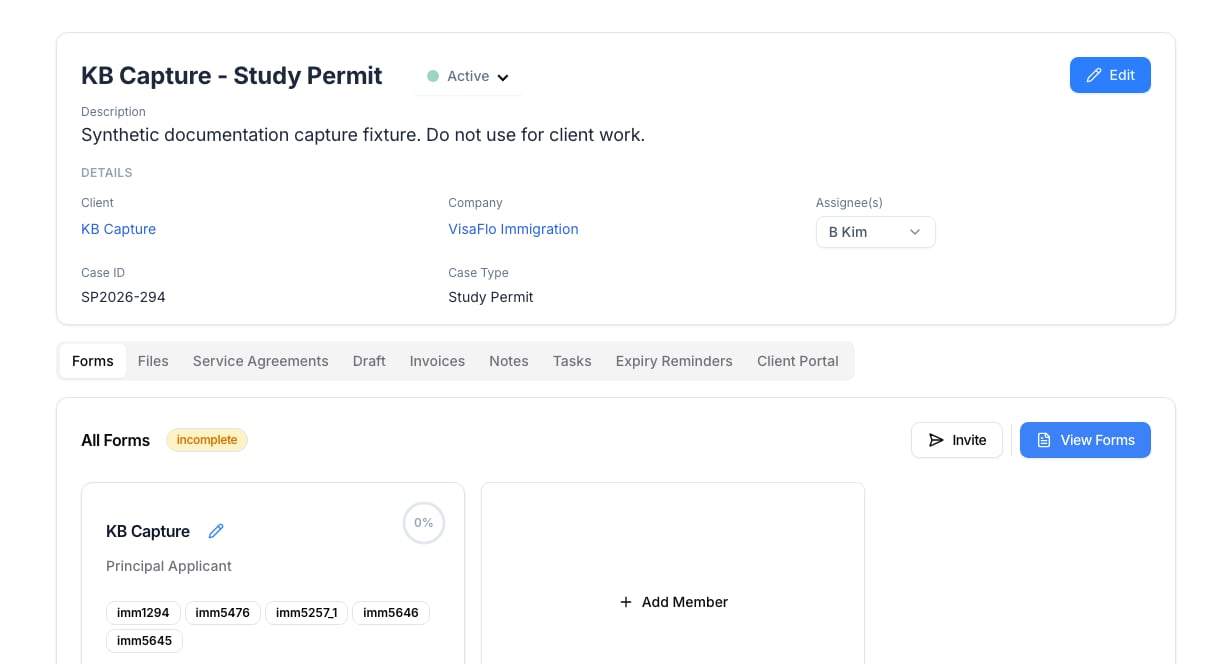
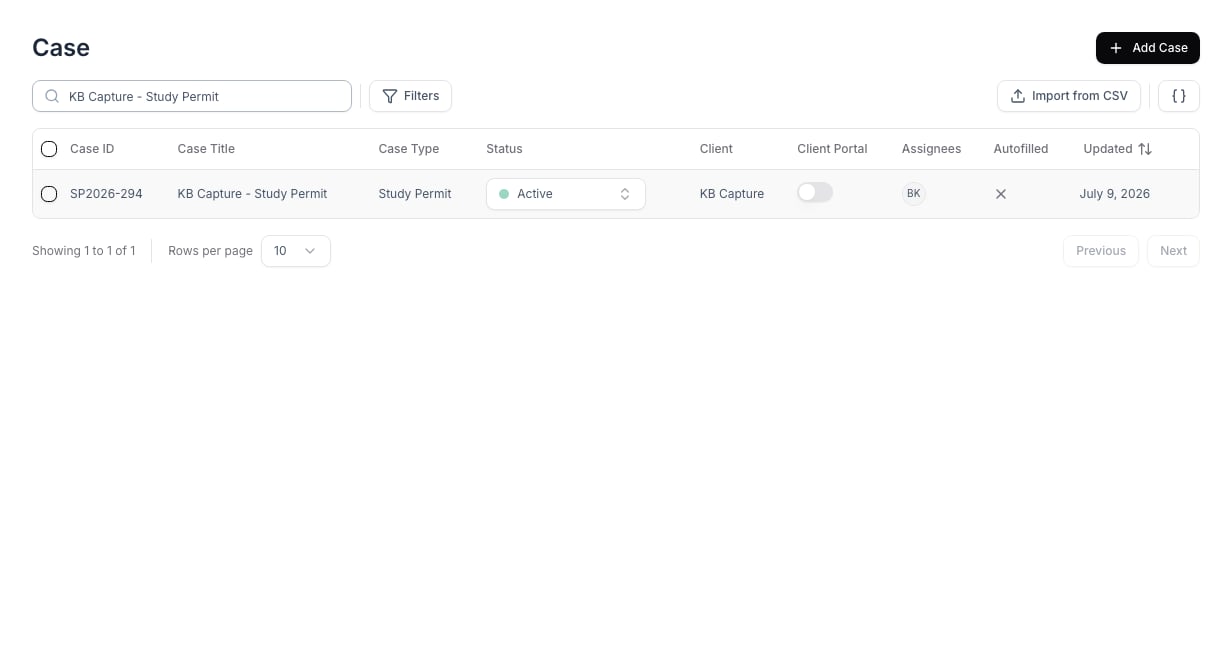 After creation, confirm the client, case type, assignees, and generated case ID before inviting the client or opening the forms.
 ## Next steps
* Use **Forms** to review the intake and send a client invitation when the questionnaire is ready.
* Use **Files** to organize supporting documents.
* Use **Tasks** and **Reminders** for internal deadlines.
* Turn on **Client Portal** visibility only when the case is ready for the client to see.
## Troubleshooting
If you selected the wrong case type, review the case before sending any invitation or generating documents. If the case should use a different intake or portal workflow, correct it with your firm lead before entering substantive client data.
## Next steps
* Use **Forms** to review the intake and send a client invitation when the questionnaire is ready.
* Use **Files** to organize supporting documents.
* Use **Tasks** and **Reminders** for internal deadlines.
* Turn on **Client Portal** visibility only when the case is ready for the client to see.
## Troubleshooting
If you selected the wrong case type, review the case before sending any invitation or generating documents. If the case should use a different intake or portal workflow, correct it with your firm lead before entering substantive client data.